

Baseline Security Mode in Microsoft 365 enables administrators to assess the impact of specific security configurations before enforcement. I talked about its usefulness and whether you should rely on it as part of your security strategy in a preview article titled: What Is Baseline Security Mode and Should You Rely on It?
In this article, I will guide you through the process of enabling Baseline Security Mode in Microsoft 365, looking at how to interpret the generated reports and how to configure each setting to ensure your environment is secure.
Page Contents
Accessing Baseline Security Mode
To enable Baseline Security Mode, navigate to the Settings blade within the Microsoft 365 Admin Centre:
- Login to admin.cloud.microsoft.
- Expand Settings and click Org Settings.
- Select the Security & Privacy tab and click Baseline Security Mode.
To view the configuration options, you must have one of the following Entra roles assigned:
- Office Apps Administrator
- SharePoint Administrator
- Exchange Administrator
- Teams Administrator
- Security Administrator
- Global Administrator
Note: While the roles above allow you to view the settings, enabling specific configurations may require distinct permissions, adhering to standard RBAC principles across Microsoft 365. Please refer to the official Microsoft Learn documentation to confirm the specific role requirements for enabling each setting.
Automatically apply default policies and assess the impact
Upon accessing Baseline Security Mode, you are presented with options to Automatically apply default policies and Generate reports.

Automatically apply default policies: Review the default policies carefully. While these settings rarely impact operations regardless of organisation size, you should validate this carefully before enabling the automatic application of the setting.
Generate reports and consent to view sensitive data: Next, enable Generate reports and consent to view sensitive data. This step is important as without it, you lose the reporting information required for you to assess the impact of these settings changes. Enabling this exposes two further options:
View reports with end-user identifiable data (EUII)
Generate audit logs for Word, Excel, PowerPoint and OneNote
I strongly recommend enabling these to maximise reporting visibility. However, you should consult your Information Security or Compliance team if your internal governance restricts the collection of EUII.
Once configured, click Save, followed by Manage all policies to access the main dashboard.
Assessing the impact of a policy
Before enforcing a policy, you must assess its potential impact on your environment. With reporting enabled, you can select any individual policy to view usage telemetry. Select a target policy to open the details pane. This view highlights the specific usage that the policy would block.

If usage is detected, download the generated CSV report to analyse the affected entities and determine the scope of the impact.
Lets look at another policy. Consider the Block new password credentials in apps policy as another example.

In the example above, 40 applications are currently utilising password credentials. Enabling this policy will not immediately break these applications, however, it prevents the creation of new secrets. This may still create a problem… When the current passwords expire, you will be unable to replace them unless the app is excluded from the policy.
Use the CSV export to determine how to remediate these issues: either by excluding specific legacy apps from the policy or creating a plan to migrate to a stronger authentication method (such as Certificate-based authentication) prior to credential expiry.

Once necessary exclusions are applied and the policy is enabled, the status will update to Meets standard.

A lack of programmatic control
One immediate observation is that Baseline Security Mode is not currently designed for automation or programmatic management. Inspection of the backend traffic reveals that the portal relies on internal, unsupported API endpoints. Due to this, we cannot programmatically enforce these policies across multiple tenants, which is a significant limitation for Managed Service Providers (MSPs) who would otherwise rely on it for scalable deployment across multiple tenants. Or also for organisations who want to implement their own drift detection with monitoring and alerting.
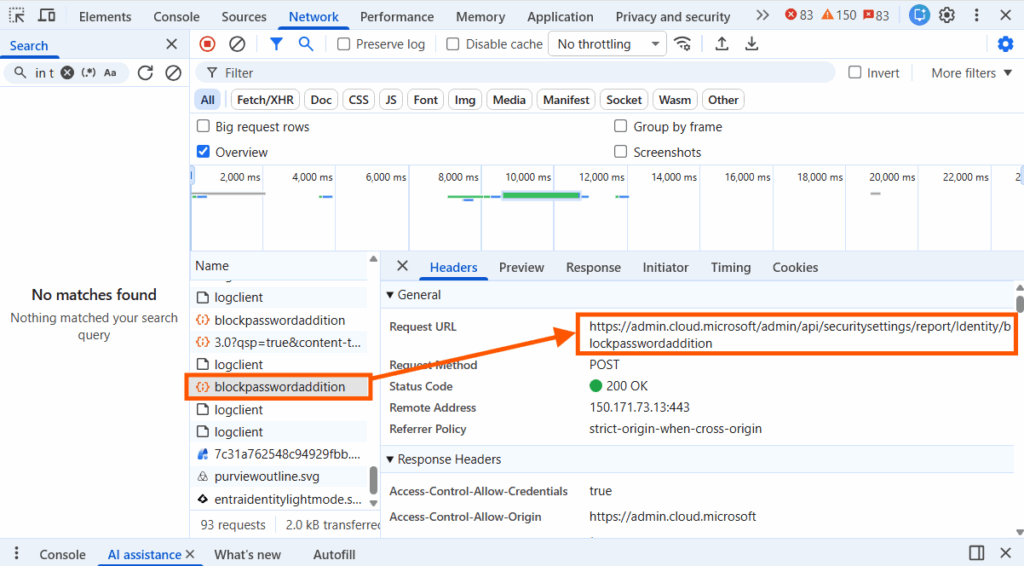
It would have been nice to have seen Microsoft bake this functionality directly into the Microsoft Graph API, this would allow users to automate these controls and make them more available. Currently, the limitation of only allowing these settings to be configured through the admin portal will slow down adoption for many organisations.
Ideally, this functionality should be native to the Microsoft Graph API. Exposing these controls via Graph would allow administrators to automate these configuration consistently. As it stands, the strict requirement to configure these settings via the GUI adds some friction. For many organisations, the inability to script these changes will inevitably slow down the adoption of what is otherwise a valuable security feature.
A lack of alerting
A significant limitation of Baseline Security Mode is the current lack of proactive alerting mechanisms. Given that this feature often targets organisations that lack dedicated Security Operations Centres (SOCs), the reliance on manual monitoring represents a problem. Administrators require automated notifications when settings are modified, new policies are introduced, or if the compliance score drops below a defined threshold. Without this capability, Baseline Security Mode risks becoming a “set and forget” configuration, leaving the tenant vulnerable to configuration drift that will slowly erode away at the security posture over time.
Wrapping up
Overall, Baseline Security Mode is a nice to have feature as it enables admins to quickly address and fix security controls that would have otherwise been easily forgotten about or missed. However, the platform is fairly light on features, no monitoring, no API access and a limit set of controls on release, which unfortunately will slow down adoption and limit any enthusiasm around the product. Never the less, this is a very exciting development, something that was only otherwise limited to services like Intune, which had their own Security Baselines for products like Windows, Edge and Defender. Lets see if the product team keep up the momentum and continue to develop this platform at speed, which is critical.
