

Securing a Microsoft 365 tenant is usually a balancing act between having to manually scour through configuration settings in portals and PowerShell to find settings, then somehow monitoring those settings for drift, whether that be through another PowerShell-based tool or a third-party product. Needless to say, there historically hasn’t been a native solution to solve the problem of configuration enforcement and drift monitoring in Microsoft 365, until now, sort of…
Recently, Microsoft announced a major step forward in the area of baseline security and monitoring with their new feature: Baseline Security Mode (BSM), but is it everything the name suggests?
In this article, I will walk you through what Baseline Security Mode is, why it’s a significant improvement over previous methods and break down the specific policies it covers. I’ll also touch on how this stacks up against third-party tools that many of us in the MSP space have been using for years.
Page Contents
What is Baseline Security Mode?
Baseline Security Mode is a new feature in Microsoft 365 designed to help organisations enforce a “secure-by-default” posture across their tenant. While it is still quite new, Baseline Security Mode provides admins granular control over specific security configurations across four key pillars: Authentication, Files, Room Devices, and Identity.
Essentially, it surfaces settings which were either previously unknown or buried deep within the admin menus or PowerShell, so they can be easily configured at the click of a button. Some of these settings can be “quick wins”, adding immediate value with minimum impact, while some settings need more consideration and can be deemed as higher impact.
Why is it Useful?
Baseline Security Mode is a simple way to reduce your attack surface and harden your Microsoft 365 tenant. It serves as Microsoft’s own benchmark for security standards, which closely aligns with other controls that I highlight in the following sections.
Before you enforce a policy in Baseline Security Mode, for example, blocking legacy authentication, the tool allows you to view telemetry on how many users or apps would be affected. This “simulation” or reporting capability is great for highlighting the potential impact enforcing a control will have in your environment before it is enabled.
Fundamentally though, here are some key points:
Granularity: You can enable specific baseline settings without being forced into the whole suite.
Visibility: Built-in reporting shows you exactly who is using insecure protocols before you block them.
Simplification: It aggregates settings from Exchange, SharePoint and Entra ID into one view.
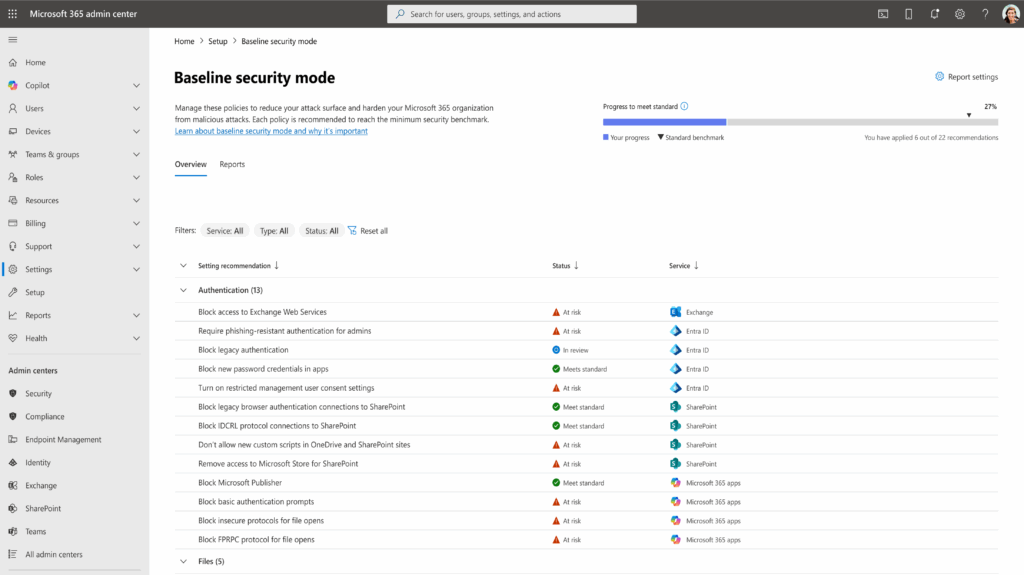
Policy Coverage
Microsoft has grouped the Baseline Security Mode settings into logical pillars. Here is a breakdown of the key policies you can enforce:
1. Authentication
The Authentication section details various settings aimed at blocking insecure authentication methods, such as requiring phishing-resistant multifactor authentication and blocking legacy authentication flows.
2. Files (SharePoint & OneDrive)
These settings are aimed at managing how files are accessed and opened, particularly focusing on legacy formats and apps, and potentially harmful features.
3. Room Devices
This section includes recommendations to restricting access to Microsoft 365 files from resource accounts used by Teams Rooms through login restrictions and Conditional Access.
While this is a good start, feature coverage is fairly light, but still, unique it is own right, as there is limited overlap with other more established benchmarks, which you can see in the next section.
Does Baseline Security Mode stack up to CIS?
There are always going to be difference between what Microsoft recommends and what the community advises. This is has been true since the inception of Microsoft products, but still, while security “settings” are contextual to each environment, some core settings which are expected to be either On or Off, which apply strong security foundations , are expected.
These core settings can be found in community (somewhat “official”) benchmarking standards like CIS. These standards, like CIS (or NIST) are standards that often influence major organisations. Take the NHS for example, their secure email standards documentation specifically references CIS benchmarks.
Below is a comparison table which compares which Baseline Security Mode controls are already included in CIS.
| Baseline Security Mode Control | Included in CIS |
|---|---|
| Protect admin access to Microsoft admin portals with phishing resistant authentication | ✓ Included: 5.2.2.5 |
| Block legacy authentication flows | ✓ Included: 5.2.2.3 |
| Block addition of new password credentials to apps | ✗ Not included |
| Restrict end-user consent to Microsoft 365 certified and single tenant apps with low risk permissions | ✓ Included: 5.1.5.1 |
| Disable organization-wide access to Exchange Web Services (EWS) | ✓ Included: 5.2.2.3 (blocking legacy auth includes EWS) |
| Block basic authentication | ✓ Included: 5.2.2.3 (blocking legacy auth include basic auth) |
| Block insecure protocols for file opens | ✗ Not included |
| Block FrontPage Remote Procedure Call (FPRPC) protocol for file opens | ✗ Not included |
| Block legacy browser authentication connections to SharePoint and OneDrive with legacy Relying Party suite (RPS) protocol | ✗ Not included |
| Block legacy client authentication connections to SharePoint and OneDrive with legacy Identity Client Runtime Library (IDCRL) protocol | ✗ Not included |
| Don't allow new custom scripts in SharePoint sites | Recently removed from CIS |
| Disable Access to Microsoft Store for SharePoint | ✗ Not included |
| Open ancient legacy formats in Protected View and disallow editing | ✗ Not included |
| Open old legacy formats in Protected View and allow editing | ✗ Not included |
| Block ActiveX controls | ✗ Not included |
| Block OLE graph and OrgChart objects | ✗ Not included |
| Dynamic Data Exchange (DDE) server launches are blocked in Excel | ✗ Not included |
| Block Microsoft Publisher | ✗ Not included |
| Don't allow resource accounts on Teams Rooms devices from accessing Microsoft 365 files | ✗ Not included |
| Only allow endpoint managed, compliant devices to sign in | ✓ Included 5.2.2.9 |
| Block resource account sign in to Microsoft 365 clients | ✗ Not included |
As you can see, most of the controls in Baseline Security Mode are not featured within CIS.
Baseline Security Mode vs. Third-Party Tools
For many organisations managing multiple tenants, we rely on tools like CIPP (CyberDrain Improved Partner Portal) or other MSP-focused security benchmarks (Like Inforcer, CoreView or AvePoint) to apply these settings. So, is Baseline Security Mode and replacement for them products?
Not exactly.
Third-party tools often go much deeper. They can apply hundreds of fine-tuned settings across most Microsoft 365 services that Baseline Security Mode doesn’t currently touch. However, Baseline Security Mode is native and free.
What Baseline Security Mode Isn't
Baseline Security Mode is a tool for organisations to quickly disable critical settings across their tenant which have a huge security gain with a little impact. It is Free and available for all Microsoft 365 customers, but this also means it isn’t a full fledged baseline product… The thing is with Microsoft products, is that they give you the capabilities to enforce controls, but they really lack reporting and alignment with frameworks… Purview does this job fairly well with its Compliance Management suite, but for everything else, you are left with interpreting logs and comparing controls manually or programmatically.
So…
- Baseline Security Mode is not a complete set of Security Controls for all Microsoft 365 Services.
- Baseline Security Mode is not the final steps on your security journey, it is a small compliment to your wider journey.
- Baseline Security Mode will not align you to any specific compliance framework like CIS, NIST or CISA.
- Baseline Security Mode is not a replacement for essential third-party benchmarking products.
If you want my opinion on properly security benchmarking your Microsoft 365 tenant, I’ve written an article all about there here: How to Actually Security Benchmark Your Microsoft 365 Tenant.
How to Access Baseline Security Mode
Baseline Security Mode is accessed through your Microsoft 365 admin centre. To start configuring these settings, you need to be a Global Admin or Security Admin. Follow the steps below to access Baseline Security Mode:
Navigate to the Microsoft 365 Admin Center.
Go to Settings > Org Settings.
Click on the Security & privacy tab.
Select Baseline Security Mode.
It is worth noting that while you can see the settings, some specific configurations (especially those tying into Conditional Access) may still require Entra ID P1/P2 licenses, though the Baseline Security Mode feature itself is available across standard plans.

