

Microsoft Entra Connect’s Seamless Single Sign-On (SSO) feature helps to simplify the user experience accessing apps protected by Microsoft Entra by automatically signing users into them when they are connected to the corporate network and joined to Active Directory. However, this convenience comes at a security cost that many organisations do not realise, by potentially putting their cloud environment at risk in the event their Active Directory is compromised.
In this article, I will explain why disabling Seamless SSO should be a priority for organisations and provide you with the steps needed to do so safely.
Page Contents
What is Seamless SSO
Seamless SSO is a hybrid identity feature that automatically signs users into cloud-based applications when they’re using their Active Directory joined corporate devices connected to the company network. While the feature is now ‘legacy’ per se, it eliminates the need for users to enter their passwords when accessing Microsoft 365 applications and other integrated cloud services from domain-joined devices.
Now, Seamless SSO is the predecessor of more modern and secure SSO methods, such as the use of Primary Refresh Tokens on supported devices.
How Seamless SSO works
The feature works by creating a computer account called AZUREADSSOACC in the on-premises Active Directory domain, which is required for the authentication process. As well as this, Kerberos SPN’s are created and the computer accounts decryption keys is shared with Microsoft Entra ID.
This computer account holds a shared secret (essentially a password, or decryption key) that Microsoft Entra ID uses to decrypt and validate Kerberos tickets. When a user’s device presents a Kerberos ticket to Microsoft Entra ID, Entra uses this shared secret to verify that the ticket is legitimate and was issued by the on-premises domain controller. If the validation succeeds, Microsoft Entra ID grants the user access to the cloud application without requiring additional authentication.
The authentication flow when using Seamless SSO works something like this:
- The user tries to access an Office 365 application.
- The user is prompted to sign in an enters their username.
- Entra ID challenges the app to provide a Kerberos ticket.
- The app requests a ticket from Active Directory for the AZUREADSSOACC computer account.
- A ticket is issued from Active Directory and the app forwards it to Microsoft Entra.
- Entra decrypts the ticket which includes the users identity.
- Once validated, Entra returns an access token back to the application, or requests MFA.
- The user can now access the application.
Why you should disable Seamless SSO
The primary reason to disable Seamless SSO is centred on a fundamental security principle: to reduce the attack surface between on-premises and cloud environments. While it is old, research was done by SecureWorks which has demonstrated how attackers can exploit Seamless SSO to conduct undetected brute force attacks against Microsoft Entra ID. These attacks utilise the Seamless SSO computer account to forge authentication requests that bypass traditional security monitoring and conditional access policies.
Practically speaking, the Seamless SSO feature is designed to provide passwordless access for domain-joined end-user devices that do not support Primary Refresh Tokens. Thankfully, this scenario is becoming less common, meaning any organisation that takes security seriously should consider immediately removing devices that do not meet these requirements, namely any device running versions of Windows earlier than Windows 10. In the current world, Primary Refresh Tokens support single sign-on for devices which are either Entra Registered, Entra Hybrid Joined or Entra Joined, even iOS and Android, enabling you to seamlessly access applications without reliance on Kerberos.
Seamless SSO and Primary Refresh Tokens can run side-by-side, and luckily, PRT will always take precedence when available. As part of Microsoft’s Security Recommendations, you should disable Seamless SSO if there is no usage.
How to disable Seamless SSO
Audit Seamless SSO usage
The first step in disabling the Seamless SSO feature is to audit whether it is still being used and if so, by whom. The most accurate way of doing this is by ensuring you have login success auditing enabling on your domain controllers. This way, each time a user successfully signs in through Seamless SSO and security event with ID 4769 will be recorded in the event log. This event log will be associated with the computer account AzureAdSSOAcc$. Once you have confidence the feature is not being used, or all the events where it is being used have been remediate, you can proceed with the next step.
To enable auditing, follow these steps:
- Log to your management computer and open Group Policy Editor.
- Create a new policy or edit an existing one.
- Expand Computer Configuration > Policies > Windows Settings > Security Settings > Advanced Audit Policy Configuration > Audit Policies > Account Logon.
- Enable success and failure logging for Audit Kerberos Authentication Service.
Now it has been enabled, allow some time for logs to collect. I recommend between 14 and 30 days.
Disable Seamless SSO
There are two steps to disabling Seamless SSO, the first is to disable the configuration in Microsoft Entra Connect and the second is to tidy up Active Directory. To disable the feature from Microsoft Entra connect, follow these steps:
- Log-in to the computer running Microsoft Entra Connect Sync.
- Click Configure.
- Select Change User Sign In and click Next.
- On the User Sign-In section, uncheck the Enable single sign-on box, click Next, then Configure.
Then to tidy up Active Directory you need to install and run the AzureADSSO PowerShell module, follow the steps below:
- On an Active Directory management server, open PowerShell an run the following commands to install the AzureADSSO PowerShell module:
#Install the AzureAD Module
install-module AzureAD

#Import the AzureAD SSO module
Import-Module "C:\program files\Microsoft Azure Active Directory Connect\AzureADSSO.psd1"
Then use the following commands to list all forests in your environment which have had Seamless SSO enabled: (if you have a single forest, you can move on to the next step).
#Create an authentication contect object for Azure AD
New-AzureADSSOAuthenticationContext

#Get the SSO status and domains from Entra ID
Get-AzureADSSOStatus
Your output should look like the below:

2. Now you can tidy up your Active Directory by running the below commands to safely delete the AZUREADSSOACC if it is still present.
#Store domain admin credentials
$creds = Get-Credential

#Disable SSO in the forest
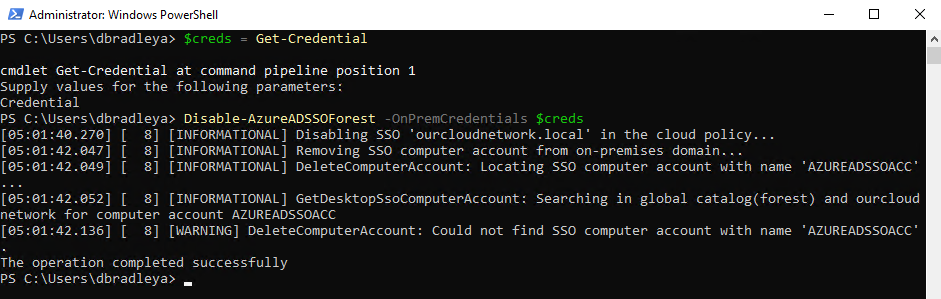
Disable-AzureADSSOForest -OnPremCredentials $creds
Here is what your output should look like:
Verify if Seamless SSO is disabled
To verify that Seamless SSO has been successfully disabled in your environment, start by signing in to the Entra Admin portal and expanding Identity > Hybrid management and select Microsoft Entra Connect. Then click Connect Sync and verify that Seamless single sign-on is set to Disabled.

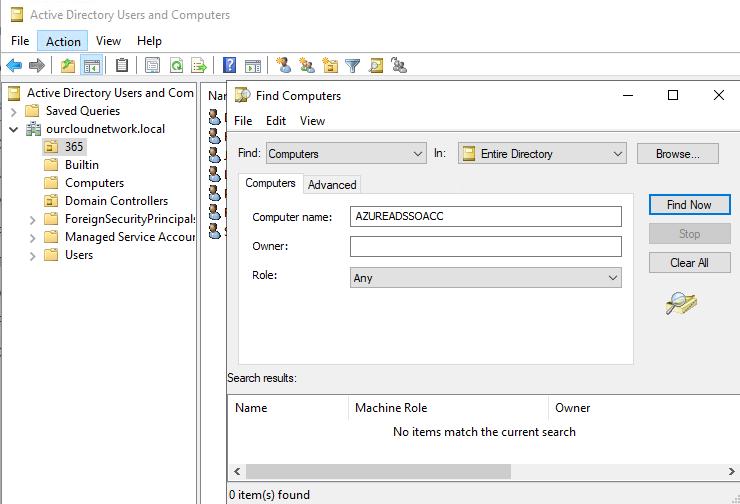
Then from your Active Directory management server, open Active Directory User and Computers, Select Actions > Find, then search for computers named AZUREADSSOACC in the entire directory. If the results come up blank, then the account has been successfully removed.

In an environment where we have both staging and production servers, do we have to update the Enable single sign-on box on both server instances?
Yes, you have to make the changes on both instance 🙂