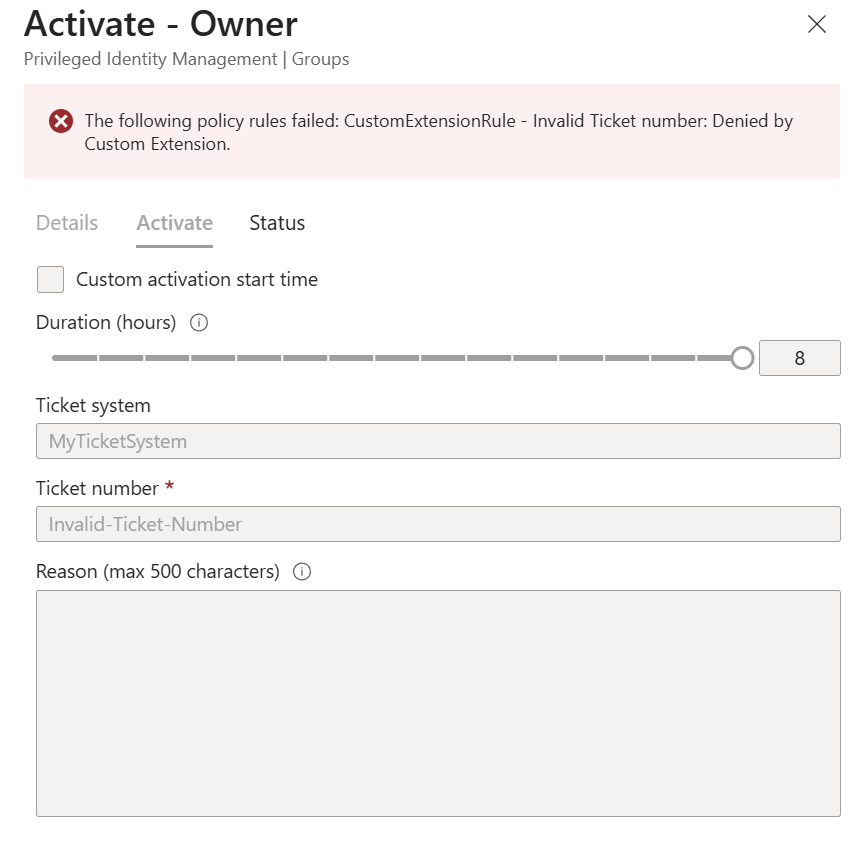
PIM is slow, that’s nothing new. But not only do privileged users have to wait for the service to kick in to get their roles or group membership, often a manual PIM approval process means user have to wait for another member of the team to manually action an approval.
Well, you now and should automate this step completely by using customer extensions with PIM which enables you to inject custom logic into the approval workflow using a standard REST API. By configuring this for ticket validation, in most cases, can you remove the need for manual activation of roles (outside of Global Administrator of-course).
Page Contents
How do custom extensions in PIM work?
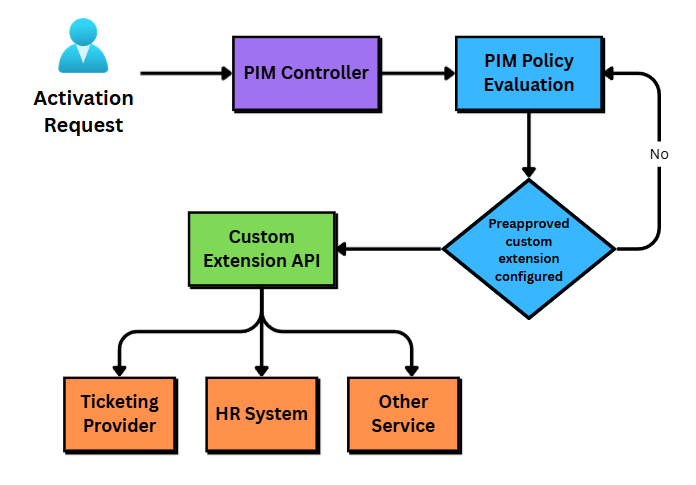
When a user submits an activation request, the central PIM controller intercepts the process to evaluate standard policies. If you have configured a pre-approval custom extension, PIM immediately pauses its normal internal checks and pushes an HTTP payload outwards to your custom API. Your external code then takes absolute control of the decision process. It runs your specific logic against outside platforms, checking a ticketing provider or an HR system to validate the user’s request data. After processing this information, your API returns a definitive approved or denied response back to PIM, which executes the final access change automatically.
Requirements
In terms of licensing, you either require Entra ID Governance licenses or Entra Suite for all users which are to benefit from Custom Extensions. Personal opinion, this is a shame, PIM is available within Entra P2, so if we need to build extensions to better use the product, it should be included within that tier of license.
Otherwise, lets be realistic. For most organisations, the built in features of PIM are plentiful and are generally not well adopted to start. You should really only be looking to adopt custom extensions if you have a well thought out PIM process already, but it could do with some automation and optimisation to enhance validation of requests and the admins experience.
Create a custom extension in the PIM portal
The first step in this process is to actually build the system which will apply the custom logic. Either integrate it into flexible systems like Workday, SNOW or Dynamics which can receive web requests and perform logic, or build a system from the ground up (ideally not). Never the less, click this link to read through the documentation from Microsoft on building a custom extension endpoint.
If you have that covered, follow the below steps to create a custom extension in the PIM portal:
- Ensure you are signed in to the Entra Admin Center as at least a Privileged Role Administrator.
- Go to ID Governance > Privileged Identity Management > Custom Extensions and click Create a custom extension.
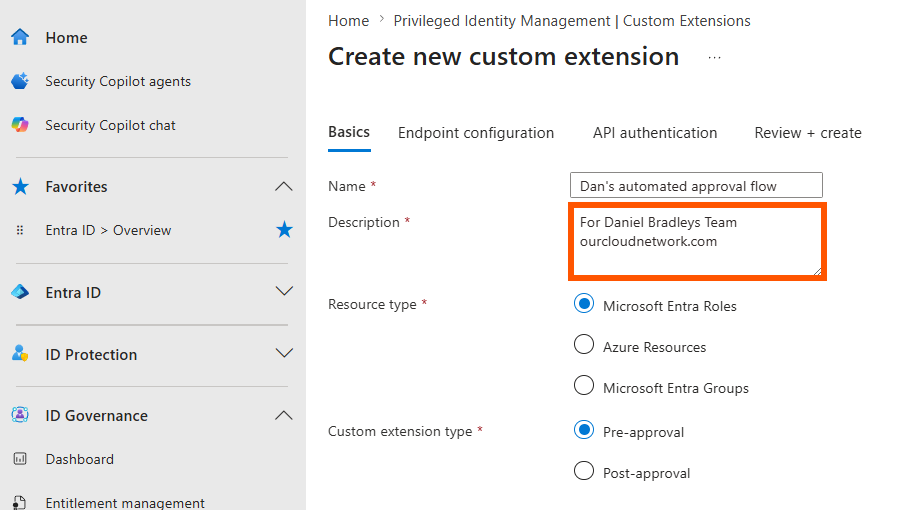
- Define a name, description and select which resource type the extension will be used to activate.
4. On the Endpoint configuration page, add the URL of your approval endpoint. Of-course here, you either have a system in place which supports this extension or you have developer you own system with API for your use case. At this point, I’m not going to repeat what the Microsoft documentation goes into detail on. Read the article “Secure you custom extension service” here.

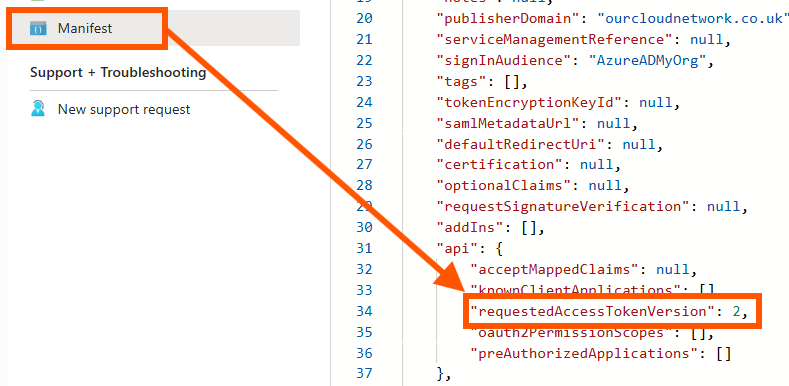
One thing to not is that within my App Registration is that I had to manually set the requestedAccessTokenVersion value in my App Registration to 2 before it would allow me to set the Application ID URI.
5. On the API authentication page select the your App Registration you would have created when building your backed system, then proceed to the Review + create page.
5. On the final page, review your configuration and click Create.
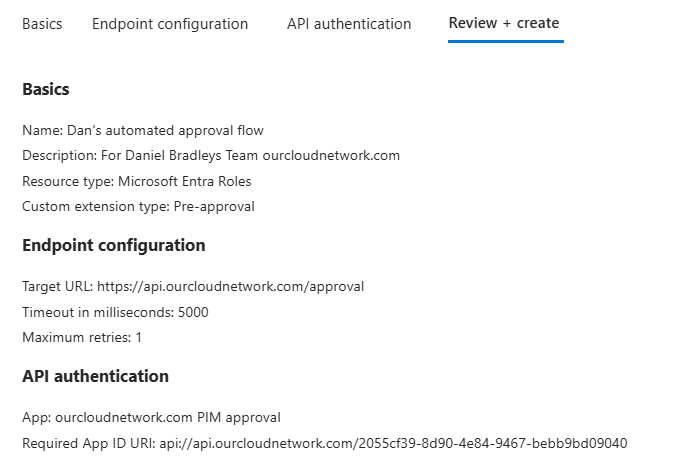
Link your custom extension to a PIM resource
Once you have created your custom extension and your developers have built the backend system for approval logic, you can link it to your PIM resource by follow the below steps:
- In the Microsoft Entra Admin Center, expand ID Governance and select Privileged Identity Management.
- Select Manage > Roles (or Groups/Azure Resources).
- Select Roles and open the desired role.
- Select Role Settings > Edit.
- Select Require pre-approval custom extension to activate.
- You can choose to enable this option in either Audit mode and Enabled and select your custom extension from the pop-out window.
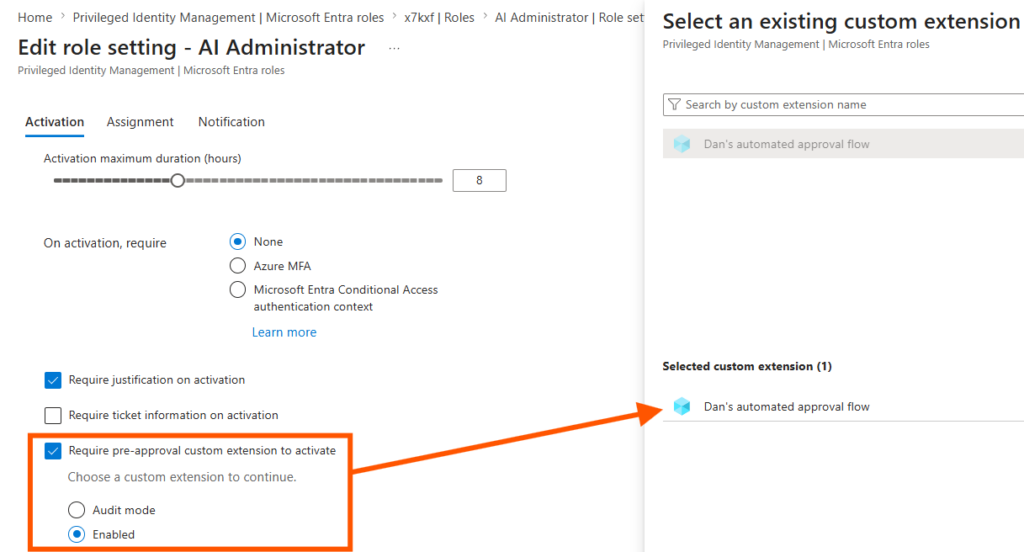
You can also define this setting to Require post-approval custom extension to activate, which would happen after the PIM activation built-in process (other before, with the setting in the screenshot).
Testing the activation flow
Once you have completed the steps, you should validate that your custom extension is working as expected. Now, as I am not a developer, nor have the time build a backend system, when I try to active the role I assigned the pre-approval custom extension to, I am simply greeted with this error: (However it does prove it is trying to do something other than the built-in PIM process)

Essentially the API endpoint on my App Registration does not resolve. However, if this was to work and the actual validation of my custom extension rejected the request for a valid reason, you may see a response like this: