

Too often I’ve felt that sinking feeling. A clean-up script you have found on the internet runs a little too aggressively, or a colleague misunderstands a change request, or a simple mis-click happens during a late-night job. And just like that, a critical cloud security group is gone.
Until very recently, when you deleted a cloud security group, it was an irreversible action. Your only options were to manually recreate the group, try to re-populate its members and then try to re-link it to all its associated apps, policies or services.
The great new is that Microsoft has just updated the official documentation (first spotted in this GitHub commit) to confirm that you can now restore deleted cloud-only security groups.
Page Contents
Why This Is So Important
For a long time now we’ve been able to restore deleted Microsoft 365 groups. Which was great, but it left a gap for the standard cloud-only security groups which is what 99% of us use to lock down our environments.
These security groups are the core of our cloud identity and access management. For example, we use them for:
Conditional Access Policies: If you have a block policy, deleting the group may open up users access. If you have a grant policy, deleting the group could lock them out of your environment.
Application Assignments: Delete the group and an entire department could lose access to a critical app.
Azure RBAC Roles: Delete the group, and your database admins can’t do their job.
Being able to restore a group with its original Object ID, members and other configuration intact means you can recover from an accidental deletion in minutes..
How to Restore Using the Web Portal
Restoring a cloud security group from the Microsoft Entra admin center is very simple, just follow the below steps and you’re group will be restored in seconds:
Log in to the Microsoft Entra admin center.
Navigate to Entra ID > Groups > Deleted groups.
Here you will see a list of all recently deleted groups, including Microsoft 365 and Security groups. Groups are typically held here for 30 days.
Find and select the security group you need to restore
Click the Restore group button.
The group is now restored, its Object ID is preserved and all its former memberships and access assignments will begin working again.
How to Restore Using Microsoft Graph PowerShell
For those that mostly live in the terminal like myself and want to restore groups programmatically or via automation, you can use the following Microsoft Graph PowerShell commands to restore your group.
First, connect to Microsoft Graph with the Group.ReadWrite.All permission.
Connect-MgGraph -Scopes "Group.ReadWrite.All"You can’t restore a group until you know its id, so that’s the first thing you need to find. While filtering for your group at server level doesn’t provide a huge performance benefit here unless you have thousands of deleted groups, it is good to be aware that filtering is supported on the displayName property.
Use the example code below and modify the value of the $displayName variable to find information on your deleted group, including the id.
$displayName = "AP Group 1 - Test"
$filter = "displayName eq '$displayName'"
$uri = "beta/directory/deleteditems/microsoft.graph.group?`$filter=$filter"
$group = Invoke-MgGraphRequest -uri $uri -OutputType PSObject | Select -expand value
Otherwise to find all deleted groups, limited to the relevant properties, you can use the below example.
$uri = "beta/directory/deleteditems/microsoft.graph.group"
$groups = Invoke-MgGraphRequest -uri $uri -OutputType PSObject | Select -expand value
$groups | FT displayName,id
Just note down the id of the group you need to restore.
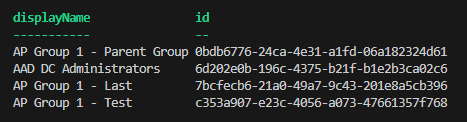
With the id in hand, use the below example command to restore your cloud security group.
$uri = "beta/directory/deleteditems/$($group.id)/restore"
Invoke-MgGraphRequest -Method POST -Uri $uri
The command will return the restored group object as confirmation. This is incredibly powerful and can be built into your operational runbooks.
Summary
While only a small documentation change, this is a massive win to combat accidental deletion of security groups which otherwise could have a huge impact on an organisation. Personally, this give’s me the confidence to be a little more forgiving when working in Microsoft Entra. Still, its not something that should be relied on, a third-party backup solution that supports Microsoft Entra really is a must, but it could get you out of a sticky situation.
