

Page Contents
What is exactly is changing?
Microsoft is implementing these security enhancements as part of the Microsoft Secure Future Initiative (SFI), further aligning with the “Secure by Default” principle that has continued to guide recent platform updates. The current default settings create unnecessary exposure points where an applications permissions can increase the risk of data leakage.
Rather than please everyone, Microsoft has chosen to prioritise security over convenience by requiring explicit administrative approval for third-party applications requiring access to files and sites for default configurations. This represents the strong move in a wider review of Microsoft 365 default configurations, hopefully, with additional security-focused changes likely to follow.
The rollout will begin mid-July 2025, with Microsoft expecting to complete the deployment across all tenants by August 2025. Administrators should prepare for these changes well in advance, as failure to properly configure consent policies could result in legitimate business applications being prevented access to critical data repositories.
Will this impact my organisation?
To be clear, this change will only impact organisations that are using the default app consent behaviour. Organisations that have already blocked user consent, turned on previously recommended settings or are using custom user consent settings will not be impacted. To check this, follow the steps below:
- Log in to https://entra.microsoft.com
- Select Identity > Applications > Enterprise applications
- Select Consent and permissions
- Click User consent settings and check if the below option is selected:
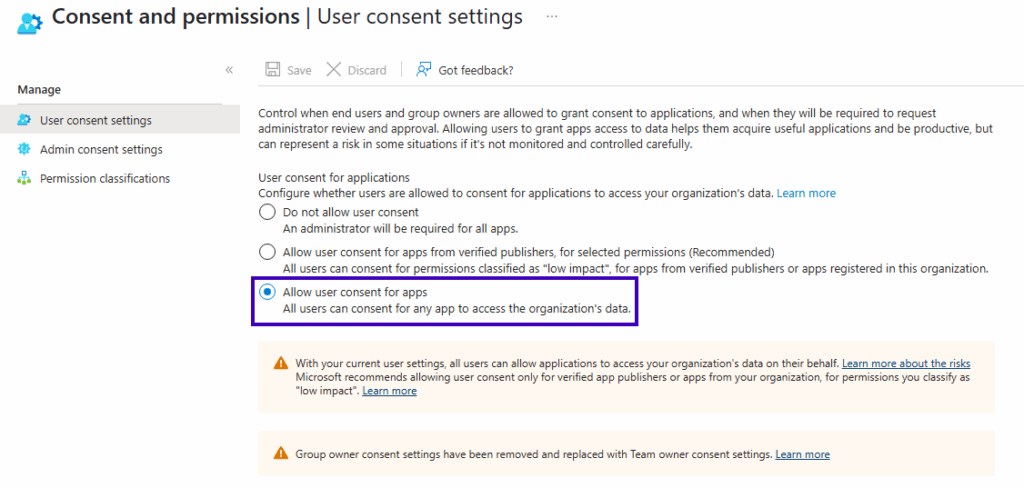
If so, consider selecting one of the other options to get ahead of this change.
You can also audit this setting using Microsoft Graph PowerShell. Here are some example commands you can use to determine which consent policy is applied to your users by default.
Get-MgPolicyAuthorizationPolicy -Property "defaultUserRolePermissions" | `
Select -Expand DefaultUserRolePermissions | fl
Using the response you can determine which grant policy is assigned by default to you users:
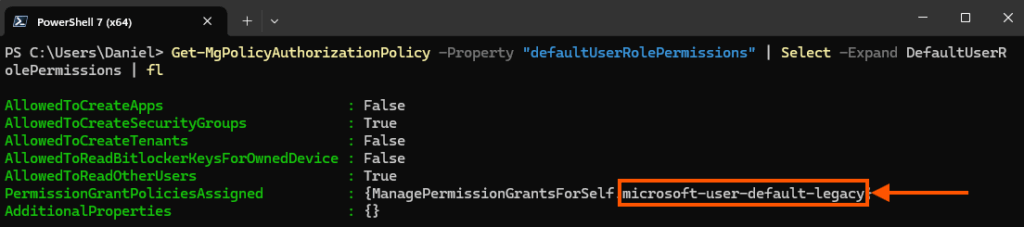
Further detail of the assigned policy can be reviewed using the following command.
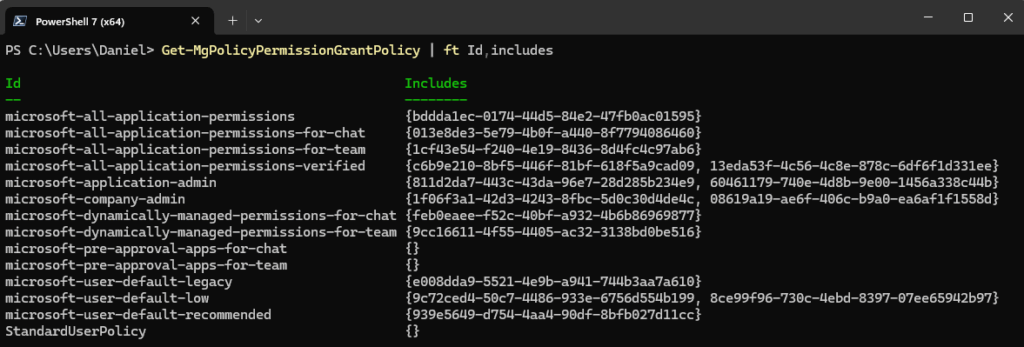
Get-MgPolicyPermissionGrantPolicy -PermissionGrantPolicyId microsoft-user-default-legacy | flAdditionally, if you have configured custom app consent policies in the past, then use the command below to list all policies so you can highlight which custom policies you have in place and whom they apply to.
Get-MgPolicyPermissionGrantPolicy | ft Id,includesReview the output and verify that for any custom policies, the required users/groups are in the Includes column.
Audit user consent to applications
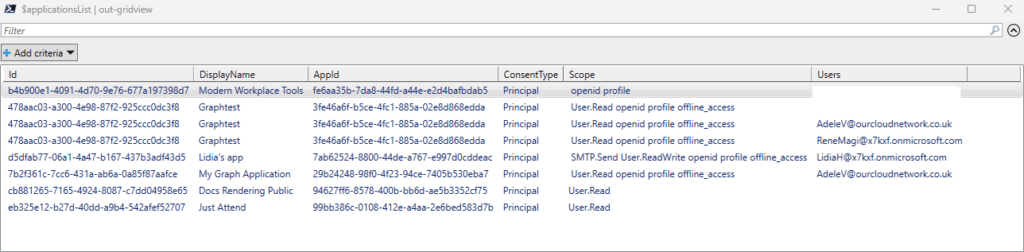
If you previously haven’t modified the default user consent settings in Microsoft Entra, but now have, you should look back at existing applications where users have previously consented to permissions. Here is a small script that will generate a table of applications where users have provided consent and which permissions they have consented to.
# Get OAuth2 permission grants with Principal consent type
$principalGrants = Get-MgOauth2PermissionGrant -Filter "consentType eq 'Principal'" -All

# Get all service principals
$allApps = Get-MgServicePrincipal -All

$allUsers = Get-MgUser -All

# Create a list of applications with Principal consent
$applicationsList = New-Object System.Collections.ArrayList

# Process each principal grant to build the application list
foreach ($grant in $principalGrants) {
    $app = $allApps | Where-Object { $_.Id -eq $grant.ClientId }
    $user = $allUsers | Where-Object { $_.Id -eq $grant.PrincipalId }
    if ($app) {
        $appInfo = [PSCustomObject]@{
            Id = $app.Id
            DisplayName = $app.DisplayName
            AppId = $app.AppId
            ConsentType = $grant.ConsentType
            Scope = $grant.Scope
            Users = $user.UserPrincipalName
        }
        $applicationsList.Add($appInfo) | Out-Null
    }
}

# Display the list of applications
$applicationsList | out-gridview
Use the output to conduct judgement on each application and decide whether you want to keep the consent in place or manually remove it.
A wider application permissions report
Take this as an opportunity to conduct a wider report of application permissions in your environment. Over the past couple of years I have written various articles to support your journey for discovering and maintain compliance of your application estate in Microsoft Entra. For example, in my “Create a free Enterprise App Permissions report in Microsoft Entra” article I have provided access to a free comprehensive permissions report script that generates an interactive HTML report of all application permissions in your tenant.

Alternatively, I have created command-line tools to quickly search for applications based on the permission consented to them. This can be found in my “Find all permissions assigned to all applications in Microsoft Entra” article.
Additionally, you should govern controls such as the ability to block the creation of client secrets or other application based credentials that the owner of an application could otherwise create. I guide you through this in my “How to block the creation of Client Secrets on Entra applications” article
Summary
Microsoft is implementing significant security changes to third-party application consent within Microsoft 365 tenants, rolling out between mid-July and August 2025. This changes will require administrators to grant consent before external applications can access SharePoint and OneDrive data.
This change will only impact you if you are currently using default app consent behaviour, if you have already implemented custom consent policies or blocked user consent you will be unaffected. All administrators should audit their current consent settings through the Microsoft Entra admin centre or using Microsoft Graph PowerShell commands to determine if action is required.
Take this opportunity to review existing user consent grants and conduct an audit of all application permissions across your environment. Failure to properly prepare for these changes could result in applications being unable to access new data repositories, which means preparation for change is essential.
