
Microsoft have recently introduced a new AI-driven Self-Service Support agent within the Entra admin centre. Currently in preview, this tool is designed to help admins troubleshoot identity and access issues without immediately needing to open a support ticket or manually sift through hundreds of log entries.
If you’ve spent any time in the Entra portal lately, you’ll find this new experience tucked away under the “Diagnose and solve problems” blade, just at the bottom of the page:

Page Contents
How it works
The agent uses generative AI (as you would expect today) to analyse your tenant’s data and provide real-time insights into common issues, such as MFA failures, Conditional Access blocks, or sign-in errors. Instead of the traditional static troubleshooting guides, you now have a conversational interface that can surface specific events.
As I have shown in the screenshot below, the agent can immediately identify recent failed sign-in attempts for your account. It doesn’t just show a generic error, it pulls the exact timestamp, the application involved (such as AADInternals or Microsoft Graph Command Line Tools), and the specific error code, for instance, 50140 or 65001.
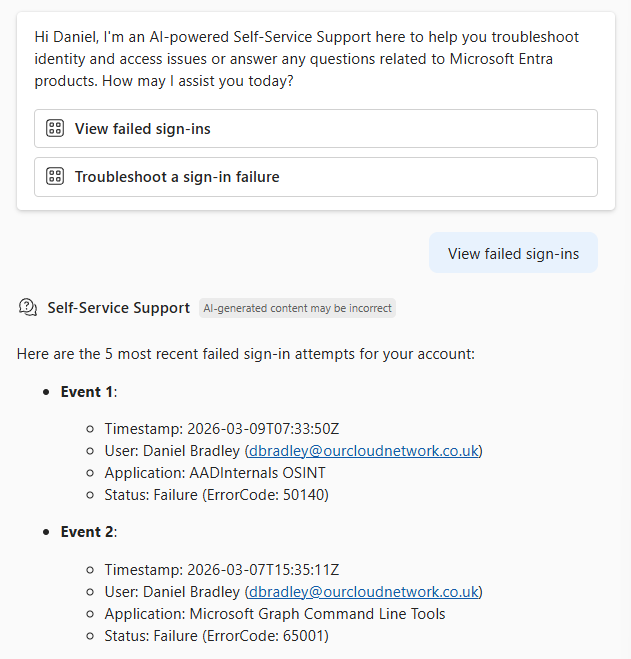
Troubleshooting experience with the self-service agent
Ultimately, just telling you your failed sign-in logs isn’t greatly helpful… the user with the failed sign-in probably told you the error they had when they contacted you. So, what does the troubleshooting experience look like with this agent? My next prompt is Event 4 – Microsoft Graph Command Line Tools (ErrorCode: 65004).
The analysis responded with the following:
Analysis: Error code 65004 indicates that you declined to consent when prompted by the application. As a result, the app was blocked from accessing Microsoft Graph on your behalf.
Okay, this is good. The analysis perfect described the reason for the error code in comparison to the Microsoft Learn documentation “UserDeclinedConsent – User declined to consent to access the app. Have the user retry the sign-in and consent to the app“. It also provided some troubleshooting steps:
Next Steps:
- Retry sign-in interactively to consent to the app:
- Open a command prompt or PowerShell window.
- Run the sign-in command for Microsoft Graph CLI (e.g.,
mgc auth login). - When prompted in the browser, review the permissions and click Accept to grant consent.
- If you don’t see a consent prompt or receive the same error, an administrator may need to grant consent for all users:
- In the Microsoft Entra admin center, go to Enterprise applications > User settings.
- Under Consent and permissions, set Users can consent to apps accessing company data on their behalf to Yes or pre-consent for the specific app.
- Save changes and have the user retry the sign-in flow.
For my scenario, this didn’t help… it referenced Microsoft Graph CLI, whereas my user was using PowerShell… so I’ve responded: Hmm this didn’t help, I think the user is using PowerShell. Now, here is the chat’s response:
Let’s walk through the PowerShell sign-in and consent process for the Microsoft Graph PowerShell SDK:
- Open PowerShell as your user account.
- Install or update the Microsoft Graph PowerShell module (if not already installed):
- Run:
Install-Module Microsoft.Graph –Scope CurrentUser –Force
- Run:
- Connect interactively and consent to permissions:
- Run:
Connect-MgGraph –Scopes "User.Read.All","Group.Read.All"- A browser window will open prompting you to sign in.
- Review the permission request and click Accept to grant consent.
- Run:
- Verify successful connection:
- In PowerShell, run:
Get-MgUser –UserId [email protected] - You should see your user’s properties returned without errors.
- In PowerShell, run:
If you’re prompted again and decline consent, you’ll receive the same ErrorCode 65004. Be sure to click Accept in the browser prompt.
Next Steps:
- If you don’t see any browser prompt, ensure your default browser is correctly configured and pop-ups are allowed.
- If an administrator already needs to pre-consent, let me know and I can guide you through the admin consent steps.
Perfect! not the most efficient, but its solved the problem and I can get back on with my day!
Does it improve the speed of resolution?
I think, ultimately yes, it would speed us the resolution time of certain issues. For example, if I was to diagnose sign-in failures manually, I would have to:
- Navigate to the sign-in logs
- Filter by user, status and interactive/non-interactive
- Click into the individual record to find the failure reason
Overall, using the support experience was faster even if the initial response took around 15 seconds in a fairly small Microsoft 365 demo tenant. However, it does make me curious about how efficient it is in environments with 10s of thousands of sign-in events per hour.
Knowledge accuracy
So far from my testing, the responses seem to be fairly spot on. Which is great, considering the agent uses a combination of Microsoft Graph data from my own tenant and public documentation from learn.microsoft.com as the source of information to analyse failures and suggest resolution through guided troubleshooting.
Really, this is a refreshing experience and certainly something which is likely lesser known by admins and should be utilised more often.
Things to call out (considerations)
The following considerations have been taken directly from the Microsoft learn article here:
- Self-Service Support conversation flow is dynamic and flexible, so each experience can vary slightly.
- Select New chat at the top of the window to refresh the conversation.
- At this time, Self-Service Support provides identity-related troubleshooting for the following types of scenarios:
- Authentication and multifactor authentication failures
- Device registration and sync issues
- Microsoft Entra Connect provisioning errors
- Conditional Access misconfigurations
- Application SSO errors
- Self-Service Support can’t perform actions in your tenant – it only provides guidance.
- Select Switch to classic experience at the top of the window to switch to the non-AI legacy search experience.
