

To secure your tenant, you first require close control over who can grant access to your corporate data. By default, Microsoft Entra ID allows all users, including external guest users, to invite more guests into your environment. This unfortunate default setting potentially can lead to untracked data access and exposure. To follow the recommended approach of zero trust, it is important that you don’t rely on any default configuration and you make the effort to change it for your organisation, otherwise, it is a setting that people can exploit without even realising.
Restricting guest inviter permissions allows you to retain oversight over who has access to data. This article walks through what guests can view, why identity lifecycles matter and how to change your settings to block guests from sending invitations.
What can guests access?
By default, external guest users can probably access more that you realise. Unless restricted, guests can view directory objects, search for other users, and view the membership lists of non-hidden groups. This level of visibility means an external partner, vendor, customer, or malicious actor can map out your internal organisational structure very quickly.
In terms of sharing, standard tenant profiles permit guests to share files, teams, and SharePoint sites outward. This capability creates an unmonitored “viral loop” where an external user introduces additional third parties who inherit access. You should stop this behaviour, and you must restrict guest permissions down to their own profile objects. This step prevents external users from browsing directory details or checking group memberships.
Below is a table of the default level of access a guest has in Entra, besides the equivalent restricted access:
| Area | Default Guest Permissions | Restricted Guest Permissions |
|---|---|---|
| Users & Contact |
|
|
| Groups |
|
|
| Applications |
|
|
| Organization |
|
|
The lifecycle of a guest is important
Managing the lifecycle of an external identity can be challenging because you lack visibility into the guest user’s home organisation. When that employee leaves their employer, their account might remain active in your tenant indefinitely unless you automate its removal or are otherwise informed (the organisation wouldn’t know they are a guest in your environment either). Left unchecked, these dormant accounts could become a permanent unmonitored entry point into your corporate data, especially if the home organisation for the guest lacks any user lifecycle management in their environment.
Allowing guests to invite other guests simply compounds this risk by creating a sprawling and untraceable access chains. The internal sponsor who originally authorised the primary guest typically has no visibility or control over the secondary guests. Over time, these orphaned accounts build up and generally negatively impact your overall identity security, by introducing un-managed risk. Implementing strict lifecycle reviews and turning off the ability for guests to invite other guests ensures that every external identity remains tied to a responsible internal owner.
Block guests from inviting more guests
To enforce the principle of least privilege, you must modify your external sharing settings within Microsoft Entra. This change shuts prevents sharing sprawl and forces all external invitations to go through only authorised channels.
Follow the below steps to adjust your settings:
Sign in to the Microsoft Entra admin center using an account with at least User Administrator privileges.
Expand Entra ID, navigate to External Identities, and select External collaboration settings.
Locate the Guest invite settings section to review your current configuration options.
- Select the radio button for Member users and users assigned to specific admin roles can invite guest users to block guest users while allowing internal staff to collaborate. Alternatively, select Only users assigned to specific admin roles can invite guest users for total administrative control.
- Click Save at the top of the portal to commit your policy updates.
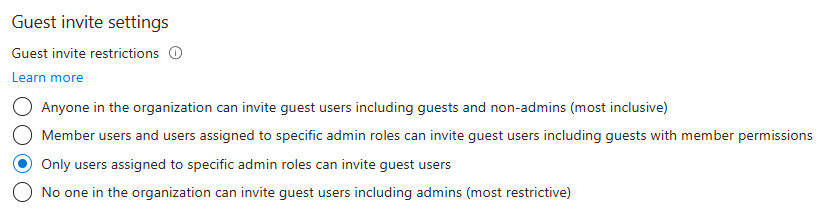
This doesn’t impact any existing guests within your tenant, only the ability to invite guests going forward from the point you make this change.
Summary
Leaving external invitation capabilities on by default introduces unmanaged guest sprawl and bypasses your standard onboarding or invitation workflows. By adjusting your external collaboration settings, you successfully stop guests from inviting more guests and regain control, setting a clear security boundary. This simple configuration change brings control back to your internal team and ensures every external account remains fully accountable. You should use these settings alongside regular identity access reviews to fully regain control of guest users within your environment.
