

It’s important to ensure that first-party applications in your tenant have assigned owners. The owner is accountable for the application’s security, compliance with company policies, and its eventual decommissioning when no longer in use.
However, being an application owner is a privilege in itself. Owners have the ability to make significant changes, such as reconfiguring redirect URIs or adding additional application credentials, which can be misused if not properly controlled.
In most cases, standard users should not be assigned as application owners, as the risks associated with that level of control often outweigh the convenience.
In this article, I’ll show you how to use Microsoft Graph PowerShell to report on application owners and filter for those who lack the appropriate privileges. App owners can also be reported from my free Application permissions report script!
Prerequisites
The example scripts in this article use commands found in the Microsoft.Graph.Authentication PowerShell module. Follow this guide on How To Install the Microsoft Graph PowerShell Module if you haven’t yet install it.
To connect to Microsoft Graph and consent to the necessary permissions, you must also use a Global Administrator account.
Find the owners for all applications
The ‘owner’ property of all applications cannot be obtained through a single command to get all first-party applications in your tenant. Instead, you must obtain all applications first, then loop through each application to obtain its owners. In the code example below, I get all applications and store then in to the $applications array, then I loop through this array to obtain the applications owners, then add the owners as a new property on the current array item.
Connect-MgGraph -scopes Application.Read.All, User.Read.All, Organization.Read.All, RoleManagement.Read.Directory

$applications = Invoke-MgGraphRequest -Method GET -Uri "/v1.0/myorganization/applications/?`$select=displayName,id,appId,createdDateTime" -OutputType PSObject | Select -Expand Value

$totalApps = $applications.Count
$currentApp = 0

$applications | foreach {
    $currentApp++
    Write-Progress -Activity "Processing Applications" -Status "$currentApp out of $totalApps applications" -PercentComplete (($currentApp / $totalApps) * 100) -CurrentOperation "Current app: $($_.displayName)"
    $owners = Invoke-MgGraphRequest -Method GET -Uri "/v1.0/applications/$($_.id)/owners?`$select=userPrincipalName" -OutputType PSObject | Select -Expand Value | Select -expand userPrincipalName
    $owners = $owners -join [environment]::NewLine
    $_ | Add-Member -MemberType NoteProperty -Name "Owners" -Value $owners
}
Write-Progress -Status "complete" -Completed -CurrentOperation "All applications processed"

$applications | Out-GridView
The final line of code in the example above will output the list of application to a pop-up windows on your desktop.

Find privileged users
While the above example serves a purpose, what isn’t detected at a glance is whether any of the application owners should be the application owner and/or whether they already have any privileged roles assigned.
It is likely that if the owner has a privileged role assigned, then they are aware of the risk of being an application owner and are ‘trusted’ to be, or ‘should’ be the owner of said application.
To identify privileged users in your environment, you first need to determine whether your tenant is licensed for Entra P1 or Entra P2. If it is licensed for Entra P2, it’s likely that some users have been made eligible for privileged roles. In this case, they will only appear as members of a role while it is activated. Therefore, it’s necessary to retrieve both assigned and eligible role members using the Privileged Identity Management APIs. If the tenant is licensed for Entra P1, you can simply query the current directory role members.
To determine the Entra license level, use the example below which will save the license plan to the $licenseplan variable.
$items = @("AAD_PREMIUM_P2", "AAD_PREMIUM", "AAD_BASIC")
$Skus = Invoke-MgGraphRequest -Uri "Beta/subscribedSkus" -OutputType PSObject | Select -Expand Value
foreach ($item in $items) {
    $Search = $skus | ? {$_.ServicePlans.servicePlanName -contains "$item"}
    if ($Search) {
        $licenseplan = $item
        break
    } ElseIf ((!$Search) -and ($item -eq "AAD_BASIC")){
        $licenseplan = $item
        break
    }
}$RoleMembers variable. If ($licenseplan -eq "AAD_PREMIUM_P2") {
#Get all members (eligible and assigned) of PIM roles
$EligiblePIMRoles = Invoke-MgGraphRequest -Uri "beta/roleManagement/directory/roleEligibilitySchedules?`$expand=*" -OutputType PSObject | Select -Expand Value
$AssignedPIMRoles = Invoke-MgGraphRequest -Uri "beta/roleManagement/directory/roleAssignmentSchedules?`$expand=*" -OutputType PSObject | Select -Expand Value
$DirectoryRoles = $EligiblePIMRoles + $AssignedPIMRoles
$DirectoryRoleUsers = $DirectoryRoles | Where {$_.Principal.'@odata.type' -eq "#microsoft.graph.user"}
$RoleMembers = $DirectoryRoleUsers.Principal.userPrincipalName | Select-Object -Unique
}else{
#Get all members or directory roles
$DirectoryRoles = Invoke-MgGraphRequest -Uri "/beta/directoryRoles?" -OutputType PSObject | Select -Expand Value
$RoleMembers = $DirectoryRoles | ForEach-Object { Invoke-MgGraphRequest -uri "/beta/directoryRoles/$($_.id)/members" -OutputType PSObject | Select -Expand Value} | where {$_.'@odata.type' -eq "#microsoft.graph.user"} | Select-Object -expand userPrincipalName -Unique
}Filter for applications with owners who are not privileged users
$RoleMembers array. We also need to filter applications where the Owners property isn’t empty. $NonPrivApplicationOwners = $applications | Where-Object {
$appOwners = $_.Owners -split [environment]::NewLine | Where-Object { $_ }
$appOwners.Count -gt 0 -and ($appOwners | Where-Object { $RoleMembers -notcontains $_ }).Count -gt 0
}
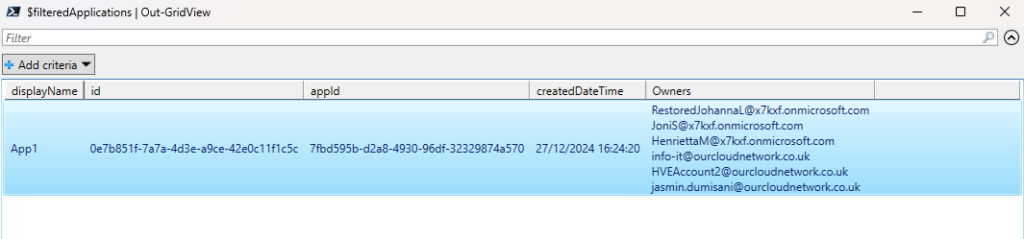
$NonPrivApplicationOwners | Out-GridViewAs you can see below, I have one application in my environment that has non-privileged owners. With this information you can assess what risk this may pose in your environment.
Filter for applications with no owners
This ensures that each application has someone accountable for its maintenance. To identify applications without owners, filter the
$application array for items where the Owners property is empty. $appsWithNoOwners = $applications | Where-Object {
[string]::IsNullOrWhiteSpace($_.Owners)
}