

In PowerShell, PSCustomObjects and Hashtables are both used to store key-value pairs, but they behave differently and serve distinct purposes. Recently, while working with a command in the Microsoft Teams module, I encountered an issue: the output was a PowerShell object, and I was unable to filter its properties by value.
In this article, I’ll show you how I solved this problem by converting the PSCustomObject into a Hashtable, allowing for more efficient filtering of key-value pairs.
The Problem
While automating the discovery of Teams policies using PowerShell, I ran a command whose output was a PowerShell object—a common behaviour for most cmdlets in the Microsoft Teams PowerShell module.
Get-CsTeamsClientConfigurationHowever, I noticed something unusual:
- The output lacked column headers when displayed in the console.
- Since it was a system object, I couldn’t easily filter its properties by value.
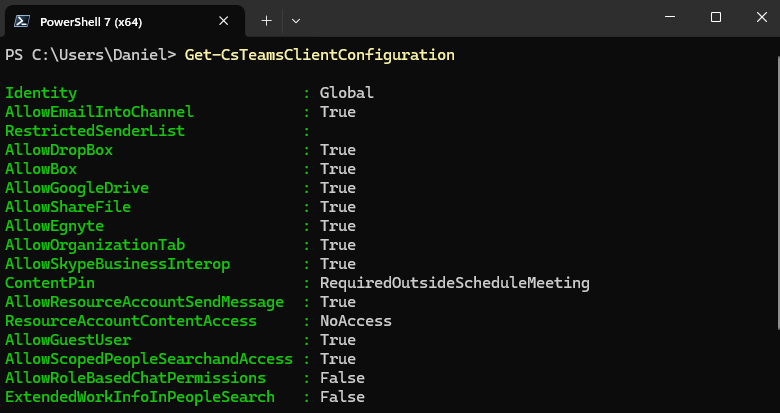
While I appreciate that it makes sense that this command’s output is fixed and that a System Object is the logical choice. However, in this scenario, I wanted to select 5 properties that pertained to external file-sharing providers and filter if any are enabled.
Initially, I assumed I could solve this by storing the response in an array and using the Where-Object cmdlet to filter for properties with a value of $true. However, this didn’t work as expected.
$teamsSharing = Get-CsTeamsClientConfiguration | select AllowDropbox,AllowBox,AllowGoogleDrive,AllowShareFile,AllowEgnyte
$teamsSharing | Where {$_.value -eq $true}
Upon reviewing the Microsoft documentation I realized why: the structure of the output made direct filtering complex.
The
Where-Objectcmdlet selects objects that have particular property values from the collection of objects that are passed to it.
The Solution: Converting to a Hashtable
The simplest and most effective way to address this issue is to convert the object into a Hashtable. This transformation turns a single object into a collection of key-value pairs that can be easily filtered.
Here’s an example:
- Loop through each property of the original object.
- Populate a Hashtable with individual key-value pairs.
$hashtable = @{}
$teamsSharing.psobject.Properties | foreach { $hashtable[$_.Name] = $_.Value }
After conversion, the output in the console will now display both names and values under proper headings.

Filtering the Hashtable
With the object now stored as a collection of key-value pairs, filtering becomes straightforward. This time, when using the Where-Object cmdlet, it correctly returns the expected results.

