How to Configure Lifecycle Workflows for Inactive Users

  • Post author:
  • Post category:Microsoft Entra
  • Post last modified:
  • Reading time:3 mins read
  • Post published:

A new trigger has been made available in Microsoft Entra Life Cycle workflows based on the last sign-in activity date property on a user account, enabling you to launch a flow to alert on or act on inactive users.

In this article I will show you how to create a new workflow which will use this trigger and what the alerting experience is like. 

Why do you need visibility on Inactive Users?

Inactive users accounts in your environment can increase your attack surface and if they are compromised, they could likely go unnoticed for a long time. This means that they could maintain persistence or elevate privileges all without raising suspicion. Also, from a financial standpoint, these inactive users often consume expensive licenses. By identifying these accounts, you can reclaim or re-allocate these licenses, directly reducing your operational expenditure.

Creating a Lifecycle workflow to target inactive users

  1. Start by expanding ID Governance and selecting Lifecycle Workflows.
  2. Click Create workflow and select the Pre-Offboarding of an employee template.
  3. Configure basic settings and set the Trigger type to Sign-in inactivity (Preview).
Life Cycle Workflows for Inactive users

4. On the Configure scope page, define rules to specify the scope that this workflow will target. In this example, I want to target: All users who are not guests and not Teams devices (based on the username).

(accountEnabled eq true) and (userType ne 'guest') and (not (startsWith(userPrincipalName, 'Teams-')))
Life Cycle Workflow Scope

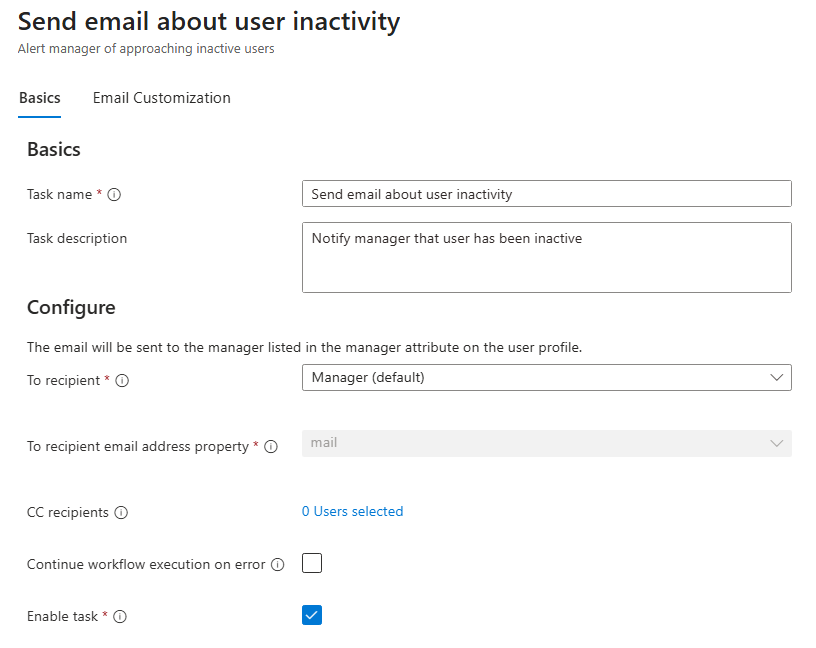
5. On the Review tasks page, delete any existing tasks and add a new task to Send email about user inactivity. One added, re-open the task and configure who the notification will be sent to and customise the email if required.

Customise the Life Cycle workflow email

Testing your inactive user Lifecycle Workflow

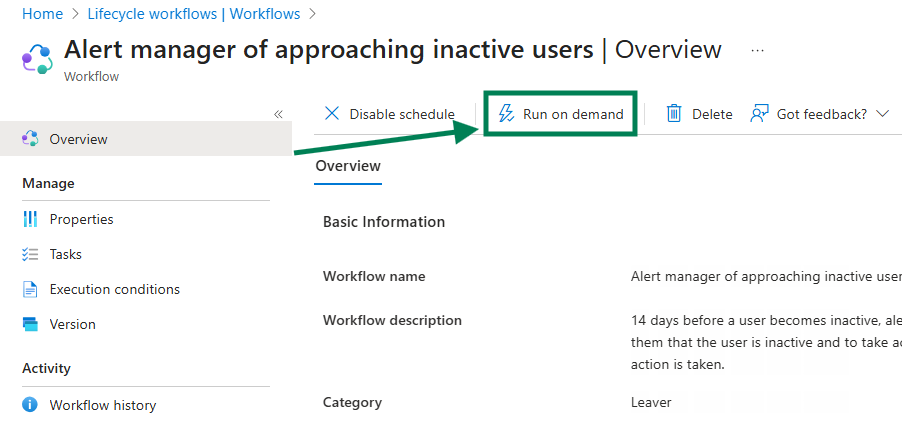
A Lifecycle Workflow can be run on demand against a specific user to ensure the workflow works as expected and gives the correct experience. To do this, open your newly created workflow, then on the Overview tab, click Run on demand.

Run a Life Cycle Workflow on demand

On the Select user tab, select the users you want to test your Lifecycle workflow against (ensuring they meet the condition of the workflow for testing), then click Run workflow. If successful, the manager (or specific user) should receive an email notifying them of the inactive user.

Inactive user Lifecycle workflow test

Lifecycle workflows, PowerShell script or both?

If you are currently not licensed for Entra ID Governance, this scenario isn’t your high-ticket item to purchase it. Identifying guest users and building a process by which they are cleared up can be solved with PowerShell. I’ve written a couple of scripts which can support this scenario, such as in my blogs: Create an Inactive M365 User Report with Microsoft Graph PowerShell & How to Run Microsoft Graph PowerShell Scripts With Azure Automation. Otherwise, if you are licensed for Entra ID Governance, I recommend you implement a solution like the above and take advantage of the no-code, automated lifecycle framework to alert and eventually remove inactive users in your environment.

Also, the two approaches are not mutually exclusive; it may be that you want more customisation in your alert emails. In this case, you may want to trigger a PowerShell workbook that would send an email via Microsoft Graph, similar to how I send emails in my blog How to Send Emails Using Microsoft Graph PowerShell.

Daniel Bradley

Daniel Bradley is a UK-based technical architect and Microsoft MVP in Security. He specialises in Microsoft Entra, Intune, and Microsoft Graph PowerShell and is the author of Microsoft Graph PowerShell for Administrators. He writes and edits Our Cloud Network using experience gained from working with Microsoft cloud environments.

Leave a Reply