Microsoft recently released documentation on the QR code authentication method in Microsoft Entra ID. While there are still some limitations, I noticed that they specifically mention that bulk provisioning of QR codes is not supported.
In a previous post, I demonstrated how to programmatically register a QR code authentication method for a user using Microsoft Graph PowerShell. In this article, I will show you how to bulk register QR codes and PINs for a collection of users in Microsoft Entra ID with PowerShell.
Requirements
The cmdlets used in the code example below are part of the Microsoft Graph PowerShell SDK. If you haven’t installed it yet, you can follow my article here to walk you through the steps.
You will also need access to a Global Administrator account to grant the necessary permissions for registering new authentication methods in Microsoft Entra ID. For more details, check out my article How To Find Permissions For Microsoft Graph PowerShell.
Bulk provision QR authentication script
Provisioning QR codes and PINs is already possible via the Microsoft Graph API, making it clear that the limitation for bulk provisioning through the Entra admin portal is simply a front-end restriction, one that could be addressed in the future. Nevertheless, handling the complexities of downloading multiple QR codes and related PINs is far more manageable when taking a programmatic approach with PowerShell.
With that in mind, below are snippets I have written that you can use to integrate bulk provisioning of QR code authentication into your organisation’s workflows.
he first step is to connect to Microsoft Graph PowerShell and grant the required permissions. To do this, you will need to sign in with a Global Administrator account.
Connect-MgGraph -scope UserAuthenticationMethod.ReadWrite.All
You can now copy and paste the function below into your PowerShell session.
Note: A PowerShell function is a reusable block of code that performs a specific task, accepts parameters, and can return output to simplify automation and scripting.
function New-MgBulkQRpin {

    param(
        [Parameter(Mandatory=$true)]
        [string]$groupid,
        [Parameter(Mandatory=$true)]
        [string]$outpath,
        [Parameter(Mandatory=$true)]
        [string]$expireindays
    )

    #Get group and group members
    Try {
        $qrUsers = Get-MgGroupMember -GroupId $groupid
    }
    Catch {
        Write-Host "Group not found, please check the group ID" -ForegroundColor Red
        Break
    }

    # Check if path exists, create if it doesn't
    if (-Not (Test-Path -Path $outpath)) {
        Write-host "Path does not exist, creating path..." -ForegroundColor Yellow
        New-Item -ItemType Directory -Path $outpath | Out-Null
    }

    #Define now & expiry date of QR code
    $expireDate = (Get-date).AddDays($expireindays).ToString('yyyy-MM-ddT23:00:00Z')
    $NowDate = (Get-date).ToString('yyyy-MM-ddTHH:MM:ssZ')

    #Initialise report
    $Report = [System.Collections.Generic.List[Object]]::new()

    #Loop through each user and generate QR code
    Foreach($user in $qrUsers) {

        Write-host "Creating QR code for: $($user.AdditionalProperties.userPrincipalName)" -ForegroundColor Cyan

        #Generate random 6 digit PIN
        $qrPIN = Get-Random -Minimum 10000000 -Maximum 99999999

        #Define body of the request
        $body = @{
            standardQRCode = @{
                expireDateTime = $expireDate
                startDateTime = $NowDate
            }
            pin = @{
                code = "$qrPIN"
            }
        }

        #Generate the QR code
        $response = Invoke-MgGraphRequest -Method PUT -Uri "beta/users/$($user.id)/authentication/qrCodePinMethod" -body $body

        #Out pin code
        New-Item "$outpath\$($user.AdditionalProperties.userPrincipalName) - pin.txt" | Out-Null
        Set-Content "$outpath\$($user.AdditionalProperties.userPrincipalName) - pin.txt" $qrPIN

        #Out QR code
        $bytes = [Convert]::FromBase64String($response.standardQRCode.image.binaryValue)
        [IO.File]::WriteAllBytes("$outpath\$($user.AdditionalProperties.userPrincipalName) - QR.svg", $bytes)

        $obj = [PSCustomObject][ordered]@{
            "User" = $user.AdditionalProperties.userPrincipalName
            "QR Pin" = $qrPIN
            "QR Pin Path" = "$outpath\$($user.AdditionalProperties.userPrincipalName) - pin.txt"
            "QR Image Path" = "$outpath\$($user.AdditionalProperties.userPrincipalName) - QR.svg"
        }
        $report.Add($obj)

    }
    $report
}
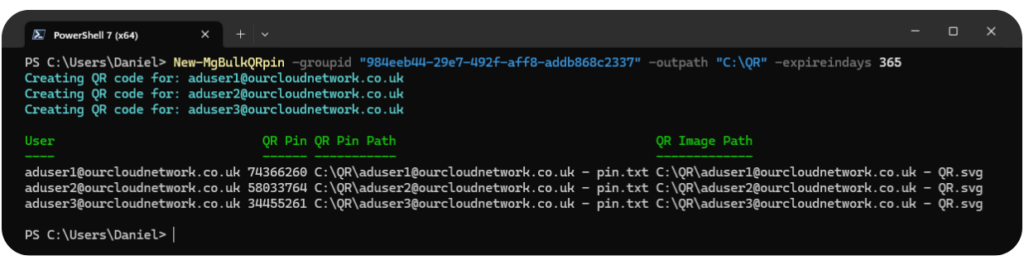
The function can then be called using the New-MgBulkQRPin cmdlet. You will need to define the following parameters:
- groupId – The ID of the group containing all the members you wish to provision a QR code for.
- outPath – The path where the QR code and PIN will be saved.
- expireInDays – The number of days until the QR code expires.
New-MgBulkQRpin `
-groupid "984eeb44-29e7-492f-aff8-addb868c2337" `
-outpath "C:\temp\testing" `
-expireindays 365
The command will then quickly generate the QR SVG files and PIN codes for each user, saving them in the specified path.