

Microsoft recently updated documentation for the Microsoft Graph Beta API’s to include guidance on a new feature which allows you to programmatically list all soft-deleted cross-tenant access policies and restore them.
Essentially, this solves a problem whereby someone either malciously or inadventantly deletes a cross-tenant access policy which blocks collaboration between organisations. Now, as these policies are no longer permanently deleted, you can find and restore said policy and quickly restore collaboration between orgs.
In this article I’ll explain what cross-tenant access policies are and walk you through how to list and restore policies using Microsoft Graph PowerShell.
Page Contents
What are Cross-Tenant Access Policies?
Cross-tenant access policies in Microsoft Entra ID are your central control panel for managing how your organisation collaborates with other Microsoft 365 tenants. Think of them as a rulebook for business-to-business (B2B) interactions, allowing you to set granular, per-organisation controls on how you work together.
You should use these policies to better control which organisations you can and cannot collaborate with, improving your overall security posture by minimising the chance of data leakage. They can be used to ensure partner organisations comply with your Conditional Access policies by trusting the token claims from their home tenants, such as their multi-factor authentication (MFA), compliant devices, or hybrid-joined devices. You can also limit access to specific applications, set up automated invitation redemption, and crucially, block access from any organisation where it is not required.
Deleting a Cross-Tenant access policy
You should be considerate of who in your organisation are able to delete your cross-tenant access policies. In the delegated (i.e. normal web portal scenario) the Security Administrator and Global Administrator are able to delete cross-tenant access policies. You can validate this by finding the microsoft.directory/crossTenantAccessPolicy/partners/delete actions listed on the permissions reference page.
List deleted policies
Often I see that organisations have more than one cross tenant access policy. While some policies, may allow trust signals, some may not and some may enable cross-tenant sync. Never the less, the most policy you have, the more chance that some may be deleted. You can use the below example code snippets to list all policies that have been deleted.
First, connect to Microsoft Graph using the Policy.Read.All scope. You will need to b a Global Administrator to grant the consent the first time.
Connect-MgGraph -Scope "Policy.Read.All"The use the below example to list all deleted policies:
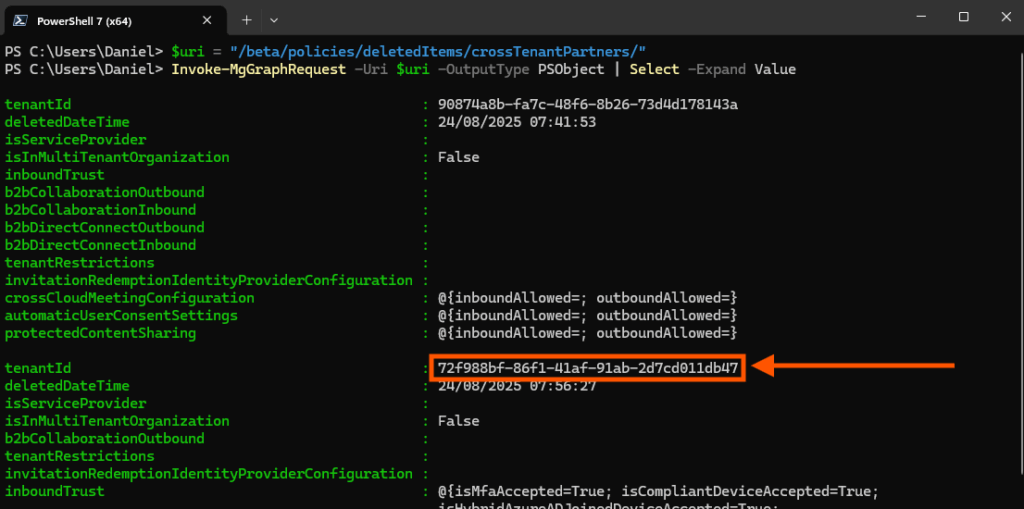
$uri = "/beta/policies/deletedItems/crossTenantPartners/"
Invoke-MgGraphRequest -Uri $uri -OutputType PSObject | Select -Expand Value
You can use the information output in the console to deduce which policy you need to restore. The key item is the tenantId, which is the crossTenantAccessPolicyConfigurationPartnerId.
Restore deleted policies
To restore the target policy, you need more powerful ReadWrite permisions. Start by connecting to Microsoft Graph with the Policy.ReadWrite.CrossTenantAccess scope.
Connect-MgGraph -scope "Policy.ReadWrite.CrossTenantAccess"Then, using the tenantId value, use the below snippet to send a POST request to the restore endpoint.
$tenantId = "72f988bf-86f1-41af-91ab-2d7cd011db47"
$uri2 = "beta/policies/deletedItems/crossTenantPartners/$tenantId/restore"
Invoke-MgGraphRequest -Uri $uri2 -Method Post
Summary
It’s important to note that the retention period for how long these policies remain in a soft-deleted state is currently undocumented by Microsoft. Given the potential impact of a deletion, it is highly recommended that you review who in your organisation holds the Security Administrator and Global Administrator roles. Limiting these powerful permissions is a critical preventative measure to protect your cross-tenant access configuration.
