

When Passkeys for the Microsoft Authenticator app was released, you had to set the Enforce key restriction settings to Yes to get it working. The requirement was detailed in the Microsoft Learn article: Enable passkeys in Authenticator (preview).
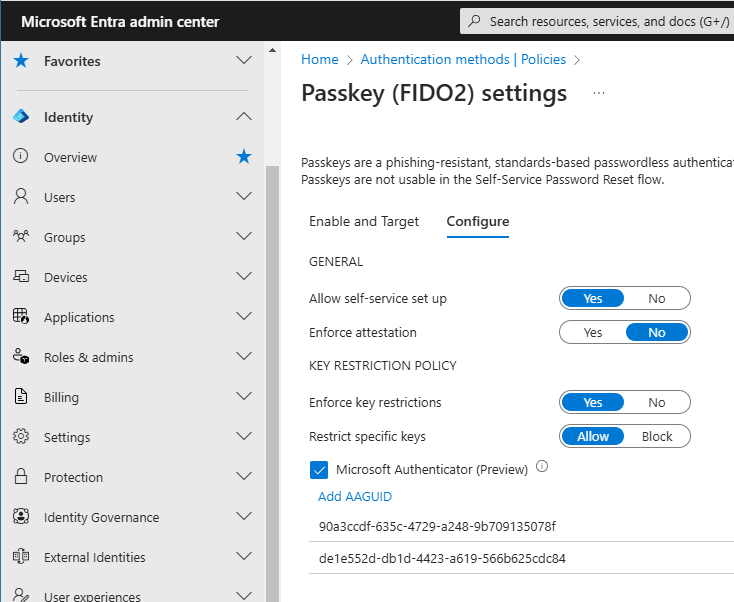
Key restrictions set the usability of specific passkeys for both registration and authentication. Set Enforce key restrictions to Yes to only allow or block certain passkeys, which are identified by their AAGUIDs.
This setting must be Yes and you need to add the Microsoft Authenticator AAGUIDs to allow users to register passkeys in the Authenticator, either by signing into the Authenticator app, or by adding Passkey in Microsoft Authenticator from their Security info.
Not all organisations practised consistency when deploying hardware passkeys. Added to this, when passkeys are deprecated and updated/replaced by their vendor, a new AAGUID may have been provided also. This led to some creative solutions to obtain a list of all the passkeys (or FIDO 2 keys) registered in a single tenant, which was required so key restrictions could be enabled, facilitating the deployment of Passkeys in Microsoft Authenticator.
One solution is the PowerShell script I wrote in my article: List All Passkeys and AAGUIDs in Microsoft Entra with PowerShell, allowing you to export a list of all Passkeys registered in your organisations.
No more key restrictions!
Microsoft have now announced that starting in mid-January 2025, organisations which have not enabled key restrictions will be able to start using Passkeys in the Microsoft Authenticator app.
More information can be found below, or through the public message center archive hosted by @Merill: MC920300
More information
Beginning mid-January 2025, after the General Availability of passkeys in the Microsoft Authenticator app, organizations with the passkey (FIDO2) authentication methods policy enabled with no key restrictions will be enabled for passkeys in the Microsoft Authenticator app in addition to FIDO2 security keys. This update aligns with the broader availability of passkeys in Entra ID, extending from device-bound passkeys on security keys to device-bound passkeys also on user devices. Users who navigate to aka.ms/MySecurityInfo will see “Passkey in Microsoft Authenticator” as an authentication method they can add. Additionally, when Conditional Access (CA) authentication strengths policy is used to enforce passkey authentication, users who don’t yet have any passkey will be prompted inline to register passkeys in Authenticator to meet the CA requirements. If an organization prefers not to enable this change for their users, they can work around it by enabling key restrictions in the passkey (FIDO2) policy. This change will not impact organizations with existing key restrictions or organizations that have not enabled the passkey (FIDO2) policy.
When this will happen:
General Availability (Worldwide, GCC, GCC High, DoD): Rollout will happen mid-January 2025.
How this will affect your organization:
Who will be impacted: Organizations with the passkey (FIDO2) authentication methods policy enabled with no key restrictions set.
Who will not be impacted: Organizations that do not have the passkey (FIDO2) authentication methods policy enabled and organizations that have the passkey (FIDO2) authentication methods policy enabled and have key restrictions set.
What you need to do to prepare:
This rollout will happen automatically with no admin action required. You may want to notify your users about this change and update any relevant documentation as appropriate.
If you already have key restrictions in place, no action is required on your part and there will be no impact to your organisation. On the other hand, if your organisation does not allow the use of preview features in production, consider setting the Restrict specific keys option to Block and checking the box for Microsoft Authenticator (Preview). This setting can be found from the Entra admin center at Protection > Authentication methods > Passkey (FIDO2) > Configure.
This work by Microsoft is likely in preparation for the general availability release of Passkeys in Microsoft Authenticator. In this case, there is good reason to not impose restrictions on the Authenticator app and to give your users the best possible experience while using one of the most secure authentication methods available.
