

In 2025, multi-factor authentication remains one of the most effective ways to safeguard sensitive data and protect against cyber threats. As organizations continue to evolve their security strategies, it is crucial to stay ahead of emerging trends and challenges in MFA deployment.
In this article, I show you 9 practical ways to enhance your MFA implementation, ensuring better security, smoother user experiences, and greater compliance. Whether you’re just starting your MFA journey or looking to optimise an existing deployment, these strategies will help you address common pitfalls in organisations’ MFA deployment to help you stay ahead of the game.
Page Contents
Ensure complete MFA coverage
Your MFA deployment shouldn’t be limited to just a subset of your most important users, you should also consider service accounts, emergency access accounts and any other identity within Microsoft Entra ID.
For an attacker, it is quite easy to enumerate valid usernames in your tenant and just as easy for them to initiate a password spray or dictionary attack against these user accounts. Without MFA, accounts become a “sitting duck”, waiting to be compromised and for organisations only doing the bare minimum when it comes to multi-factor authentication, what are the chances that a successful malicious sign-in goes undetected post breach?
The quickest way to identify user accounts in your organisation that do not have MFA registered is to use the User registration details report in the Microsoft Entra admin center. Sign in to the Microsoft Entra admin center then select > Protection > Authentication methods > User registration details, then modify the Multifactor authentication capable filter to Not capable. Here you will be presented with a list of all identities which are not yet ready to have MFA enforced, these should be the target for your MFA registration campaign.
Abolish your legacy MFA exclusion policies
Countless organisations I have spoken to this year have explained to me they have some form of MFA exclusion based on trusted IP range. Their argument is usually one of the following:
- Our office is secure, we don’t need to enforce MFA while working from the office.
- Users are not allowed to have their mobile phones on them while they are working as the information they are working with is too sensitive.
If your organisation falls into this category, YOU ARE AT RISK.
There are two poor schools of thought when it comes to this scenario; “MFA is inconvenient” and “Our office address is trusted”, in both cases your adversary is going to thank you dearly. The solution to the perceived inconvenience is simple and it’s usually a case of not understanding how tokens and SSO work in the world of Microsoft Entra ID. Simply put, once you complete your MFA registration, only in very few cases will you likely be challenged for it again, even more so if you have adopted Windows Hello for Business.
For the second point, you might trust your office network, however the the false sense of security you get from swiping your door entry card may leave you in trouble. While global technical news may be filling your mind with social engineering and state sponsors attacks, IP spoofing is still a serious threat and it’s not hard for an attacker to alter their source address to trick the recipient authorisation server that it is coming from a trusted source.
So how do you enforce MFA on your trusted network while preventing your staff from using their mobile phone? Well, like I said… only in very few cases will they be challenged for MFA in a well-configured environment. In any case, have the staff member store their phone near them (in a locked cabinet drawer) so they can reach it if required… other types of emergencies can happen too right? Alternatively, you could invest in physical hardware passkeys to fulfil MFA requirements when it is not possible to use a mobile phone. Here is a list of FIDO-certified passkeys you should choose from.
Remove legacy or 'left over' authentication methods
So you have completed a successful multi-factor authentication rollout and all staff are now using the Microsoft Authenticator (or similar) application to complete their MFA challenges. What is often forgotten about, is that while a user’s default multi-factor authentication method may be ‘secure’ like the Microsoft Authenticator app, nothing is stopping them from selecting a previously registered (and less secure) MFA method during the sign-in prompt.

You mustn’t waste your hard work deploying good multi-factor authentication by leaving legacy methods available for abuse. Like before, open the User registration details report and add only the legacy MFA methods to the Methods registered filter. This will expose all user accounts with insecure methods registered that need removing.
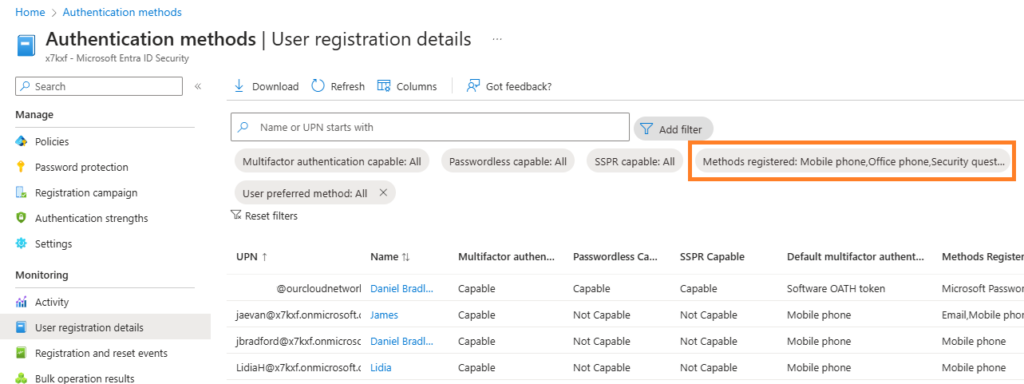
To remove these legacy authentication methods, select each user from the list and on their profile select > Authentication methods > Three little dots next to the method > Delete.
Tighten your Authentication Methods policies
Authentication methods policies in Microsoft Entra ID specify which authentication methods can be used by your users to sign in and perform multi-factor authentication. You should review these policies to ensure you are only allowing the most secure methods to be used for multi-factor authentication, aligned to your organisation’s requirements.
You must take care when modifying these policies and if you haven’t completed the prior step of removing these legacy methods, you should do that first. You want to avoid scenarios where a user has SMS and the Microsoft Authenticator app registered for MFA but has since lost or replaced their mobile and instead of re-registering the Microsoft Authenticator app, they continued with using SMS for authentication, unbeknown to the organisation’s IT team.
To review and modify these policies, log in to the Microsoft Entra admin center and follow these steps:
- Expand Protection and select Authentication methods.
- From the Policies tab, click on the Method you wish to disable.
- Disable the method by clicking on the slider, then click Save.

Notice that if you now select one of the users from the User registration details report, and click the view details tab next to their legacy authentication method, the sign-in state will show Not allowed by policy.

Strengthen MFA on critical assets
So you have ensured all user accounts use multi-factor authentication, removed any policy exclusions and removed any legacy authentication methods, now it is time to think about which assets in your organisation necessitate stronger authentication methods.
If you are working with assets critical to your organisation, such as payroll services, customer data or intellectual property, you may want to consider that these users use stronger or more secure authentication methods to better protect their accounts.
The table below (created by Microsoft) highlights all available authentication methods ranging from the good, bad and the best.

The strongest authentication methods that I recommend from the above are not only those that are passwordless but those that are passwordless and use the FIDO2 passwordless authentication method standard. For example, you may have enabled passwordless authentication in the Microsoft Authenticator app, but you may have not yet enabled Passkeys in Microsoft Authenticator which abides by the FIDO2 open standard.
If your organisation is already using the Microsoft Authenticator app, consider configuring passkeys stored within the Microsoft Authenticator app to take advantage of phish-resistant authentication without any additional cost. Start with your users who access critical services, then expand to the rest of your organisation.
Passwordless authentication using Passkeys can be enforced using Authentication Strengths within Conditional Access policies. For more information, check out my guide on How to setup Require Authentication Strength in Conditional Access.
Enable SSO for all 3rd-party applications and services
Multi-factor authentication in Microsoft Entra isn’t just limited to protecting resources within the Microsoft ecosystem, it can also extend to your 3rd-party applications and services. Take a cloud-based HR system for example (such as Xero), if you go any buy their product, you will be asked to create a username and password which will gain you access to their service. Instead of having a separate username, password and multi-factor method to access this service, you should integrate (otherwise known as federate) your Microsoft Entra ID with said application, enabling what is called ‘Single Sign-On’, allowing you to use your existing Microsoft credentials and multi-factor mechanism to sign into the app.
The idea is to ensure your Microsoft Entra ID is the single identity provider in your environment, enabling you to access all of your external (as well as internal) services using a single credential.

There are additional benefits of doing this, including:
- Lower administrative overhead of managing access to 3rd-party systems.
- Reduction in potential additional licensing fees.
- Better experience for your end user.
- Pass signals from your 3rd-party application into services such as Microsoft Defender and Conditional access for added security.
Microsoft also provides out-of-the-box tutorials to integrate common tools such as ServiceNow, Workday, Salesforce and more with Microsoft Entra single sign-on here.
Extend modern authentication to legacy applications and services
While most 3rd-party, externally hosted applications likely already support integration with Microsoft Entra ID, the same cannot be said for many on-premises, legacy applications that use Windows-integrated authentication protocols or ADFS.
Start by documenting all the legacy applications in your environment and plan to do one of the following:
- Decommission/replace the application with a modern counterpart.
- Modernise the app to use Entra ID if you have a development team on hand.
- Implement an Entra proxy service in front of the application.
Any of the above options are valid solutions to implement Microsoft Entra ID authentication and take advantage of security tools like Conditional Access.
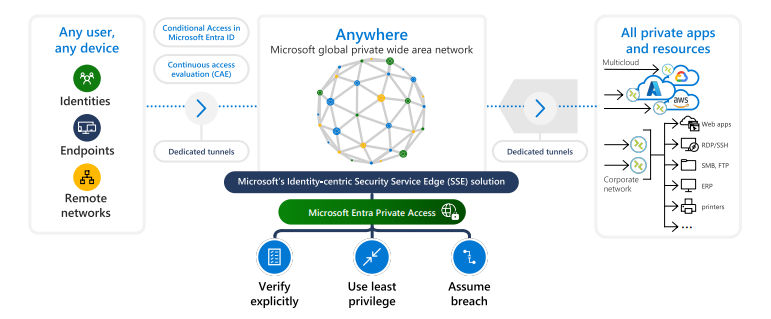
A simple solution to layering Microsoft Entra ID authentication services in front of your on-premise application is to utilise the Microsoft Entra application proxy service. Not only does this allow you to configure sign-in to Microsoft Entra to access your application, but it also enables secure access to your application over the Internet.

However, a better, but slightly more complex solution to this problem would be to use Microsoft Entra Private Access. Private Access enables you to create a point-to-site VPN between your device and the legacy application using similar technology to the application proxy. With Private Access, you can also benefit from sharing signals with Conditional Access and improved token protection with Conditional Access Evaluation. In this scenario, your application is not exposed to the internet, instead a secure private tunnel is created between you and your application.
Create a passwordless strategy and drive usage
Passwords are inefficient, vulnerable to attack and encourage poor user behaviour. An important step to improving your MFA deployment (and security in general) is to develop a strategy whereby you begin to discourage using passwords across your organisation.
This step is not limited to your work device or accessing Microsoft 365 services. Still, it is a principle that should be applied to all applications and services accessed across the organisation.
At a thousand-foot view, your passwordless strategy might look like the following:
- Choose passwordless authentication methods
- Integrate passwordless authentication into applications
- Enrol users in passwordless methods
- Monitor and enforce passwordless compliance
- Prepare for backup and recovery
Where you should start right now is step 1. While reading this article, you can probably decide right away what the right passwordless authentication method is for your organisation, your options are:
- Microsoft Authenticator – Here you can quickly enable passwordless with zero impact to the end user directly from the Authenticator app. Alternatively, you can configure your users to register Passkeys in Authenticator for stronger protection.
- Windows Hello for Business – This allows you to configure biometric and/or PIN login for your end user Windows devices, immediately discouraging the use of passwords in the single place a user is guaranteed to have to type their password in every day. Eventually, the password sign-in option can be removed from the login screen.
- FIDO2 Passkeys – Passkeys or FIDO2 keys are hardware devices that support passwordless login, based on the open FIDO2 un-phishable standard. While Passkeys are now supported in Microsoft Authenticator, an alternative solution for users who cannot use their mobile phone during work time is to purchase a FIDO2 hardware device, like the ones provided by YubiKey, HyperFIDO or Titan.
Rollout Windows Hello for Business
Although mentioned in this article, Windows Hello for Business is a native passwordless solution for your Windows device. It is a secure authentication method that replaces passwords with biometric features (like facial recognition or fingerprints) or PINs. It offers enhanced security and a more convenient, password-free login experience for your end users.
Rolling out Windows Hello for Business is often one of the first steps in any organisation’s passwordless strategy. As most users are required to enter their password each day to access their work device, removing the need to do this immediately improves their login experience and can encourage a smoother adoption of other technologies later on.
Other immediate benefits of Windows Hello for Business include:
- Improved Security: By using biometrics over traditional passwords, it significantly reduces the risk of phishing, credential theft, and other password-based attacks, enhancing overall security.
- Improved User Experience: Users can authenticate once using Windows Hello for Business and gain access to all linked enterprise applications without needing to re-enter passwords, improving productivity and convenience and reducing the risk of password exposure.
- Lower IT Overhead: By eliminating password management and reducing the reliance on password resets, your IT team will spend less time dealing with authentication issues, resulting in a reduction in supporting requests and cost savings.

Great article, thank you. You mention federating Xero with Entra ID – I haven’t found a way to do that because Xero doesn’t work with it.
Thanks, great content as always!
Small typo in there;
Conditional Access Evaluation > Continuous Access Evaluation