

Sometimes, Agents are created for a short-lived project, then the Agent can outlast the work it was meant to do, or they just fade out as their usefulness dwindles away. As your organisation adopts more agents, keeping track of which identities still serve a purpose becomes another housekeeping job for IT.
Microsoft offer a useful starting point, which is a completely free default inactivity policy for Microsoft Entra Agent ID. Every tenant can use it regardless of licensing status. You do not need Entra ID P1 or P2, Microsoft Entra ID Governance or Microsoft Agent 365 to enable this particular policy.
Microsoft still require appropriate licensing for your custom agent lifecycle policies. However, this free policy gives you a fixed clean-up process that you can turn on immediately.
What the free policy does
Looking at the policy itself, it notifies owners and sponsors after 60 days of inactivity, disables the identity after 90 days and deletes it after 455 days. The catch is that you cannot change those actions or timeframes.
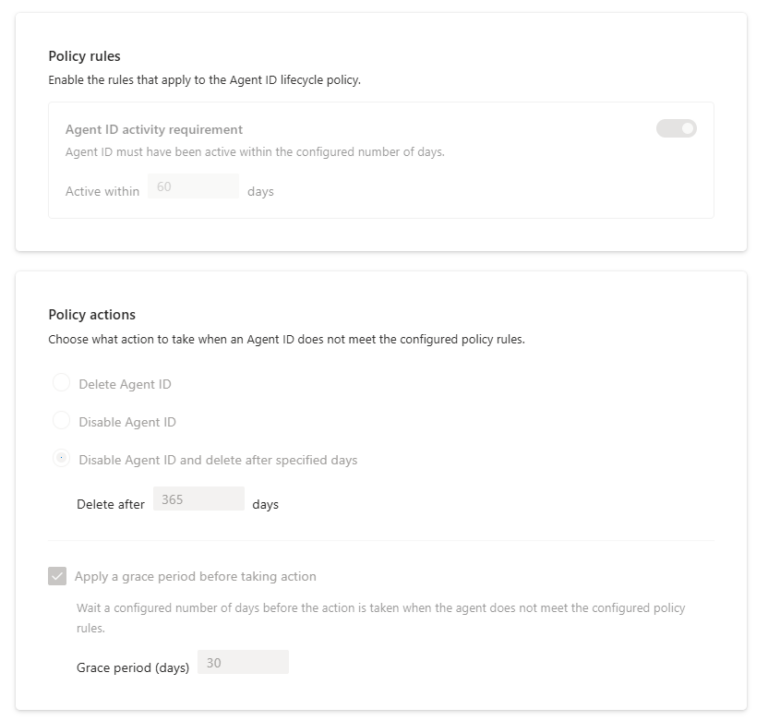
Of-course, disabling an identity may still interrupt an agent you still need, if that agent is rarely used, so review the scope of the policy before enabling it. For example, an agent used only for an annual process could otherwise become a clean-up candidate between it’s useful period. You can exclude selected identities and provide fallback notification recipients, including a group mailbox, when an identity has no owner or sponsor.
If an identity is disabled or deleted, only an owner or administrator can recover it, sponsors (the accountable person) cannot re-enable or restore agent identities.
Agent ID lifecycle policies still remain in preview as of the time of writing this, which means that come without without a service-level agreement. Microsoft do not recommend them for production workloads, but I recommend you turn this one on.
Enable the default inactivity policy
First, sign in to the Microsoft Entra admin centre with the Lifecycle Workflows Administrator, AI Administrator or Agent ID Administrator role, as listed in the prerequisites.
Next, browse to ID Governance > Lifecycle Workflows > Lifecycle Policies > Agent ID (Preview). Open Default Agent Identity Inactivity Lifecycle Policy, select Policy Configuration and turn on Enable policy.
Then, review the scope. Choose All Agent IDs, or All Agent IDs except selected and use + Select Agent IDs to exclude identities that must remain available despite long gaps in activity. Add fallback notification email addresses where needed, then review the configuration and select Save.
I would start by reviewing seasonal agents and missing ownership records before enabling tenant-wide clean-up. Free licensing removes the financial hurdle which is nice, but you still need to decide which inactive identities your organisation can safely lose (or can’t lose).
