

Web Account Manager support for Microsoft Graph PowerShell enables you to seamlessly authenticate to Microsoft Graph using the stored credentials on your device, enabling critically secure functionality such as Token Protection via Conditional Access. I wrote about enabling Token Protection (or specifically, Token Binding) in a previous article which goes into more detail on deploying it.
The prior problem with using WAM in Microsoft Graph PowerShell, was that up to only very recently, an issue with the Azure.Identity library meant that any version of Microsoft Graph PowerShell after 2.25 errored when you tried to authenticate using WAM. This is something I raised a bug about on GitHub, which has only very recently been fixed.
Enabling (and disabling) WAM for Microsoft Graph PowerShell is conveniently easy, as all you need to do is run the following command, then when you next connect, you’ll be presented with a WAM prompt.
Set-MgGraphOption -EnableLoginByWAM $trueThat being said, you should first ensure you have the latest version of the Microsoft.Graph.Authentication PowerShell module installed to ensure this works correctly. This can be done with a single command, like so:
Update-Module -Name Microsoft.Graph.AuthenticationI did look deeping into what caused this problem and is was essentially caused by a version conflict within the underlying identity libraries, where the older SDK was searching for a specific security component that did not exist. Where the SDK has upgraded to the newer versions of Azure.Identity (1.17.1) and Azure.Identity.Broker (1.3.1), Microsoft aligned all the internal dependencies to be consistent, including “TokenType” definitions required for secure Windows authentication (PoP). Personally, I’m not a development, but I have had a lot of fun using DotPeek to figure out what is going on within these DLL files.
One thing you may have noticed when connecting to Microsoft Graph PowerShell on the latest version is that since Microsoft have resolved the WAM issues, they have made this the default login experience for Windows devices and it cannot be disabled.
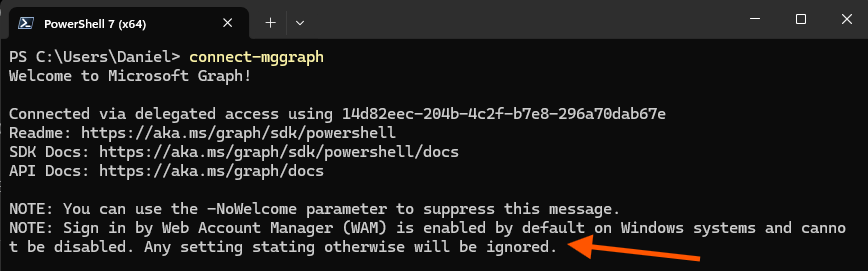
As you can see below, even with the EnableWAMForMSGraph option set to false, the default login experience prompts with the WAM experience.
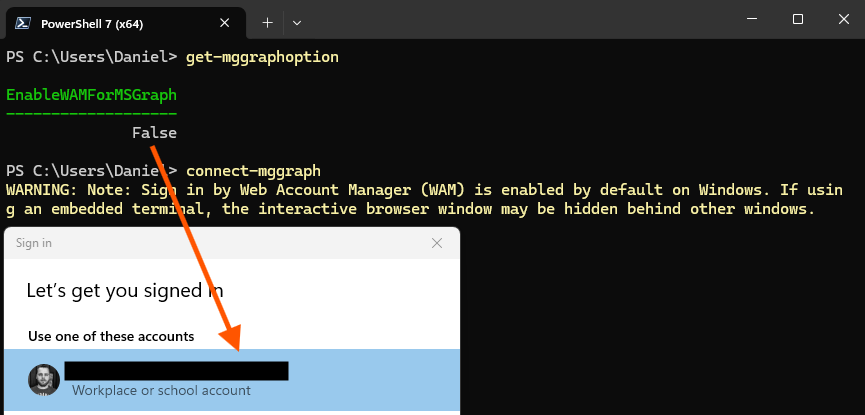
Behind the scenes, the now dependant version of the Azure.Identity.Broker library has implemented a new class called “DevelopmentBrokerOptions” which fundamentally sets the UseDefaultBrokerAccount variable to true which enables silent authentication with the systems default broker account. This means that Graph PowerShell can now leverage WAM without requiring user interaction where possible and force it on us consumers.
Personally, I think this is a positive move enforcing the use of seamless SSO and support for Token Protection where possible Albeit it is a change in experience that has not been well communicated by Microsoft and may lead to instances where users may register their device to Entra as a privileged user account.

Still isn’t working for PowerShell ISE, and I believe elevated PowerShell 5.1 sessions also don’t work.
Eventually I found two workarounds. For Connect-MgGraph use -UseDeviceCode, and for Connect-Entra, use -DeviceCode. This will prompt you to access a specific website, where you will login and enter a code displayed in the PowerShell window.
Eventually I cobbled this code together based on a fix for the same issue with ExchangeOnlineManagement:
Import-Module -Name Microsoft.Entra
$msalPath = [System.IO.Path]::GetDirectoryName((Get-Module Microsoft.Graph.Authentication).Path);
Add-Type -Path “$msalPath\Dependencies\Microsoft.IdentityModel.Abstractions.dll”;
Add-Type -Path “$msalPath\Dependencies\Desktop\Microsoft.Identity.Client.dll”;
[Microsoft.Identity.Client.IPublicClientApplication] $application = [Microsoft.Identity.Client.PublicClientApplicationBuilder]::Create(“14d82eec-204b-4c2f-b7e8-296a70dab67e”).WithDefaultRedirectUri().Build();
$result = $application.AcquireTokenInteractive([string[]]”https://graph.microsoft.com/.default”).ExecuteAsync().Result;
$secureString = ConvertTo-SecureString -String $result.AccessToken -AsPlainText -Force
Connect-Entra -AccessToken $secureString
Should work with Connect-MgGraph by adjusting the first and last lines.
Hi Brent,
You shouldn’t be using Microsoft Graph PowerShell with PowerShell v5. Install V7 and switch from ISE to VSCode, thank me later 😉
WAM is turned on by default from v2.34.0 – what are the options? -Devicecode doesn’t work for me