

Two new settings recently appeared in the Microsoft Entra device settings portal, which enables better control over which users are added to the local administrator’s group of a device during the Microsoft Entra registration phase of joining a device to Microsoft Entra. These settings are:
- Global administrator role is added as local administrator on the device during Microsoft Entra join
In this article, I will explain in more detail how both of these features work, how to enable them with Microsoft Graph PowerShell and how to test them in the real world.
Page Contents
Global administrator role is added as local administrator on the device during Microsoft Entra join
This setting determines if the Microsoft Entra Global Administrator role is automatically added to the local administrator’s group when the devices are joined to Microsoft Entra.
This setting should be set to $false or No. There are plenty of arguments for and against adding your Global admins to the local administrator’s group on a device, but as there is no logical reason why a Global administrator will need to perform elevated tasks on an end-user device, you should disable this setting. It would be worth taking this one step further and preventing Global administrators from logging onto end-user devices; this can be achieved using the Deny Local Log On settings catalogue item.
To disable this setting from the portal, follow the steps below:
- Log in to entra.microsoft.com.
- Expand Identity > Devices.
- Select All Devices.
- Select Device Settings.
- Set Global administrator role is added as local administrator on the device during Microsoft Entra join (Preview) to No.
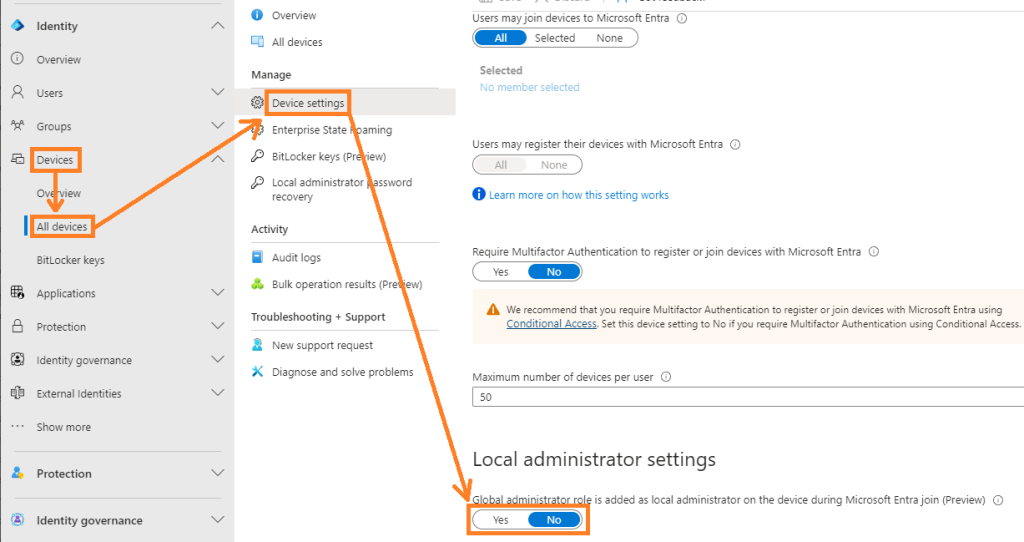
Modify the Global Administrator local admin membership policy with PowerrShell
You can also prevent Global administrators from joining the local administrator’s group using Microsoft Graph PowerShell with the below code:
(Check out How To Install the Microsoft Graph PowerShell Module if you need to install or upgrade the modules)
Connect-MgGraph -Scopes Policy.ReadWrite.DeviceConfiguration

$DeviceRegPolicy = Invoke-MgGraphRequest -Method GET -Uri "beta/policies/deviceRegistrationPolicy"
$DeviceRegPolicy.AzureADJoin.localAdmins.enableGlobalAdmins = $false

Invoke-MgGraphRequest -Method PUT `
-Uri "beta/policies/deviceRegistrationPolicy" `
-Body $DeviceRegPolicy
Registering user is added as local administrator on the device during Microsoft Entra join
This setting determines if the user joining their device to Microsoft Entra is automatically added to the local administrator’s group. This setting allows for more fine-grained control over which users will be added to the local administrator group during the device registration phase.
This privilege can be assigned to individual users or using group membership which would be the preferred method.
To modify this setting from the portal, follow the steps below:
- Log in to entra.microsoft.com.
- Expand Identity > Devices.
- Select All Devices.
- Select Device Settings.
- Set Registering user is added as local administrator on the device during Microsoft Entra join (Preview) to Seleted.
- Click the hyperlink below and choose which members should be added.

Modify the Registering Users local admin membership policy with PowerShell
To modify the local group membership eligible users or groups using Microsoft Graph PowerShell, use the example code below. Change the Target type depending on whether your $ObjectTargetList contains user or group objects. You can also gather this information using Get-MgUser or Get-MgGroup.
Connect-MgGraph -Scopes Policy.ReadWrite.DeviceConfiguration

$TargetType = "Users" #Users or Groups

#List of user OR group object IDs
$ObjectTargetlist = "ce7d521f-6699-4f19-9697-530c79115f1e", "248844c8-93f5-434f-a07f-d26b4c75d5a9"

$DeviceRegPolicy = Invoke-MgGraphRequest -Method GET -Uri "beta/policies/deviceRegistrationPolicy"
$DeviceRegPolicy.azureADJoin.localAdmins.registeringUsers.$TargetType += $ObjectTargetlist

Invoke-MgGraphRequest -Method PUT `
-Uri "beta/policies/deviceRegistrationPolicy"`
-Body $DeviceRegPolicy
Testing local administrators restrictions
Once these settings are in place, the next time you join a device to Microsoft Entra, whether you do so from the settings console or through the Autopilot process, the local administrator restrictions will apply. I did have one caveat when I tested this on a virtual machine: I could not log in remotely as my registering user no longer had remote desktop logon rights.
In this case, to proceed with testing, you must log in with another local administrator user and add your user to the ‘Remote Desktop Users’ group.
Net localgroup "Remote Desktop Users" /Add %user principal name%You can then log in with your standard user account and attempt to elevate your rights using your Global administrator account.

Entra vs Autopilot
Through my testing, in the scenario that your Autopilot profile has been configured to set the registering user as standard and your Entra policy is configured to set the registering user as an Administrator, Autopilot wins. If you are onboarding your devices to Entra, join manually through the Windows settings page; the Autopilot profile is irrelevant.

Hi Daniel, good information!
I’ve just tested the Entra vs Autopilot section myself, but my experience is different. In the scenario that the Autopilot profile has been configured to set the registering user as standard and the Entra policy is configured to set the registering user as an Administrator, Entra wins! This is undesired behavior for us, so I’m wondering if the rules of the game for this feature have been changed by Microsoft.
What we’ve also experienced is if we disable the Entra feature and the Autopilot profile has been configured to set the registering user as Administrator, the user ends us as a Standard User. So, the Entra feature seems to have killed the AutoPilot profile option completely!
I’m wondering if you have the same expierence?
Christian
This is interesting, the complete opposite behaviour! Let me test!
Hi Daniel, This is very useful, do you know what you would set $DeviceRegPolicy.azureADJoin.localAdmins.registeringUsers to if you wanted it set to none?