

The Invoke-MgGraphRequest cmdlet can be use to, and it is the only current way to view the Windows LAPS password for a device managed by Intune using PowerShell. Of course, the LAPS module built into the latest version of Windows 10/11 includes the Get-LapsAADPassword cmdlet, however, the cmdlet simply references a nested PowerShell script that was built by a Microsoft Staff member and installed alongside the LAPS module during the update, which does exactly what I am going to show you how to do in this tutorial.
So, in this tutorial, I am going to show you how you can use the Invoke-MgGraphRequest cmdlet to send a GET request to Microsoft Graph with PowerShell and retrieve the LAPS password for a managed device in Intune.
Pre-requisites
To complete this task you must have the Microsoft Graph PowerShell SDK installed on your system, either in the current user or all users context. It doesn’t matter which version of the SDK you have installed, however for consistency and stability, I recommend you install the last stable version by running the following command:
Install-Module Microsoft.Graph -scope Currentuser -ForceThis will force install the latest stable version of the Microsoft Graph PowerShell modules on your machine in the current user context, which does not require local administrator privileges.
For a more detailed tutorial on installing and upgrading the Microsoft Graph PowerShell module, check out my guide here: How to install the Microsoft Graph PowerShell Module
Purpose of using Invoke-MgGraphRequest to get the Windows LAPS Password
Invoke-MgGraphRequest is a PowerShell cmdlet which allows you to make any/most Microsoft Graph API request in the event there is not an already supported cmdlet for that task.
It is worth noting also that unlike the Microsoft documentation, which details using the LAPS module which comes pre-installed with the April update of Windows 10/11 to retrieve the LAPS password, this can also be done without the April update.
Behind the scene, the LAPS module that comes pre-installed with the Windows April update, nests a script module name Get-LapsAADPassword within it. This nested module uses Microsoft Graph Invoke-MgGraphRequest in the same way I will show you to retrieve the LAPS password, it is just built into a helpful module. By learning how to use the Invoke-MgGraphRequest method to get the LAPS password, you can build your own modules for convenient, programmatic access to the information you need.
Permissions and authentication
The minimum permissions required to view the LAPS password using this method are the Device.Read.All and DeviceLocalCredential.Read.All permissions.
The Device.Read.All will allow you to read the information from your devices using the Get-MgDevice cmdlet. With this, you can retrieve the DeviceId value which you will need to add you the URI (or simply the web address) for the Invoke-MgGraphRequest command to find your device.
The DeviceLocalCredential.Read.All permission allows you to read the LAPS password for Intune managed devices.
Also, for this script to function as expected when running the Connect-MgGraph cmdlet, you must log in with a global administrator. This is because when you connect, you will need to delegate the specified permissions to the Microsoft Graph Command Line Tools app in Microsoft Entra, which can only be done by a global administrator.
How to get the Windows LAPS password with Invoke-MgGraphRequest - Breakdown
Start by connecting to Microsoft Graph with the Connect-MgGraph cmdlet and specify the permissions you wish to consent to:
Connect-Mggraph -Scope DeviceLocalCredential.Read.All, Device.Read.AllYou can validate your session is appropriately assigned the correct permissions with the Get-MgContext cmdlet:
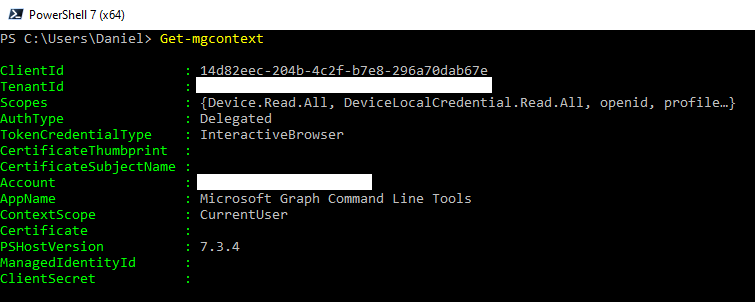
Now this is done, we will need to retrieve the DeviceId value from our target device in Intune so we can re-use it further in our script. We do this with the Get-MgDevice cmdlet, which is what the Device.Read.All permission is needed for.
To efficiently find our specific device, we use the Get-MgDevice -Filter "DisplayName eq 'YourDeviceName'" parameter. This queries Microsoft Graph server-side, which is much faster and more reliable than downloading all devices and piping them to Where-Object.
$DeviceName = "Win11Desktop02"
# Note: Using the -Filter parameter is faster than Where-Object as it queries Graph directly
$DeviceId = (Get-MgDevice -Filter "DisplayName eq '$DeviceName'").Id
We then need to generate a new and unique correlation ID which will be added to the header of our request. This will then be used to identify the context of the request across multiple services.
$correlationID = [System.Guid]::NewGuid()The URI (Universal Resource Identifier) is an address path which will specify where a particular resource can be found, in this case, within Microsoft Graph. Our URI will consist of both the path to our desired information type as well as the unique DeviceId of the object we need the LAPS password from.
$uri = 'beta/deviceLocalCredentials/' + $DeviceId
$uri = $uri + '?$select=credentials'
We now need to build the header of our request, let’s look at each bit of information added to our header:
- ocp-client-name – This header is the name of the application performing the API call. It is optional, but will help to identify any issues should there be any.
- ocp-client-version – Again this value is optional and will help with debugging if you are mannaging version history for your PowerShell scripts/apps.
- Client-request-id – This will also help with debugging and it is necessary if you wish to engage Microsoft support for help with your issue.
Use the below code to build your header within the $header variable:
$headers = @{}
$headers.Add('ocp-client-name', 'Get-LapsAADPassword Windows LAPS Cmdlet')
$headers.Add('ocp-client-version', '1.0')
$headers.Add('client-request-id', $correlationID)
Now we are ready to send our request to Microsoft Graph. Use the following Invoke-MgGraphRequest command with the GET method to query the graph API, we will then save the response in the $Response variable.
$Response = Invoke-MgGraphRequest -Method GET -Uri $URI -Headers $headersTo check our request returned the expected information, type $Response or $Response.Credentials into your command line, the output should look like the below:

As the password for our LAPS account is encoded in Base64 we must decode it to plain text. This can be easily done in our PowerShell script using the following:
$passwordb64 = ($Response.credentials).PasswordBase64
$passwordb64 | %{[Text.Encoding]::UTF8.GetString([Convert]::FromBase64String($_))}
Your output will look like the below:

Full script
Below you can easily copy and paste my code into a text editor, change the $devicename value and run the script with PowerShell to retrieve the laps password for your device.
You can also download a more detailed version of this script I wrote on my Github which can be run as a full script with the device name as a parameter.
#Connect to Microsoft Graph
Connect-Mggraph -Scope DeviceLocalCredential.Read.All, Device.Read.All

#Define your device name here
$DeviceName = "Win11Desktop02"
# Note: Using the -Filter parameter is faster than Where-Object as it queries Graph directly
$DeviceId = (Get-MgDevice -Filter "DisplayName eq '$DeviceName'").Id

#Generate a new correlation ID
$correlationID = [System.Guid]::NewGuid()

#Define the URI path
$uri = 'beta/deviceLocalCredentials/' + $DeviceId
$uri = $uri + '?$select=credentials'

#Build the request header
$headers = @{}
$headers.Add('ocp-client-name', 'Get-LapsAADPassword Windows LAPS Cmdlet')
$headers.Add('ocp-client-version', '1.0')
$headers.Add('client-request-id', $correlationID)

#Initation the request to Microsoft Graph for the LAPS password
$Response = Invoke-MgGraphRequest -Method GET -Uri $URI -Headers $headers

#Decode the LAPS password from Base64
$passwordb64 = ($Response.credentials).PasswordBase64
$passwordb64 | %{[Text.Encoding]::UTF8.GetString([Convert]::FromBase64String($_))}
Frequently Asked Questions (FAQs)
How do I get the LAPS password using PowerShell?
You can retrieve the Windows LAPS password for an Azure AD/Entra joined device using the built-in Get-LapsAADPassword cmdlet, the Graph PowerShell Get-MgDeviceLocalCredential cmdlet, or by making a direct API call using Invoke-MgGraphRequest to the deviceLocalCredentials endpoint.
What permissions do I need to read LAPS passwords in Microsoft Graph?
To read LAPS passwords via Microsoft Graph, your app registration or delegated user session requires the DeviceLocalCredential.Read.All permission. To look up the device ID beforehand, you will also need Device.Read.All.
How do I filter Get-MgDevice by DisplayName?
To efficiently find a specific device, you should use server-side filtering rather than piping to Where-Object. Use the exact syntax: Get-MgDevice -Filter "DisplayName eq 'YourDeviceName'". This ensures the filtering is done by the Graph API before returning the results to PowerShell.
